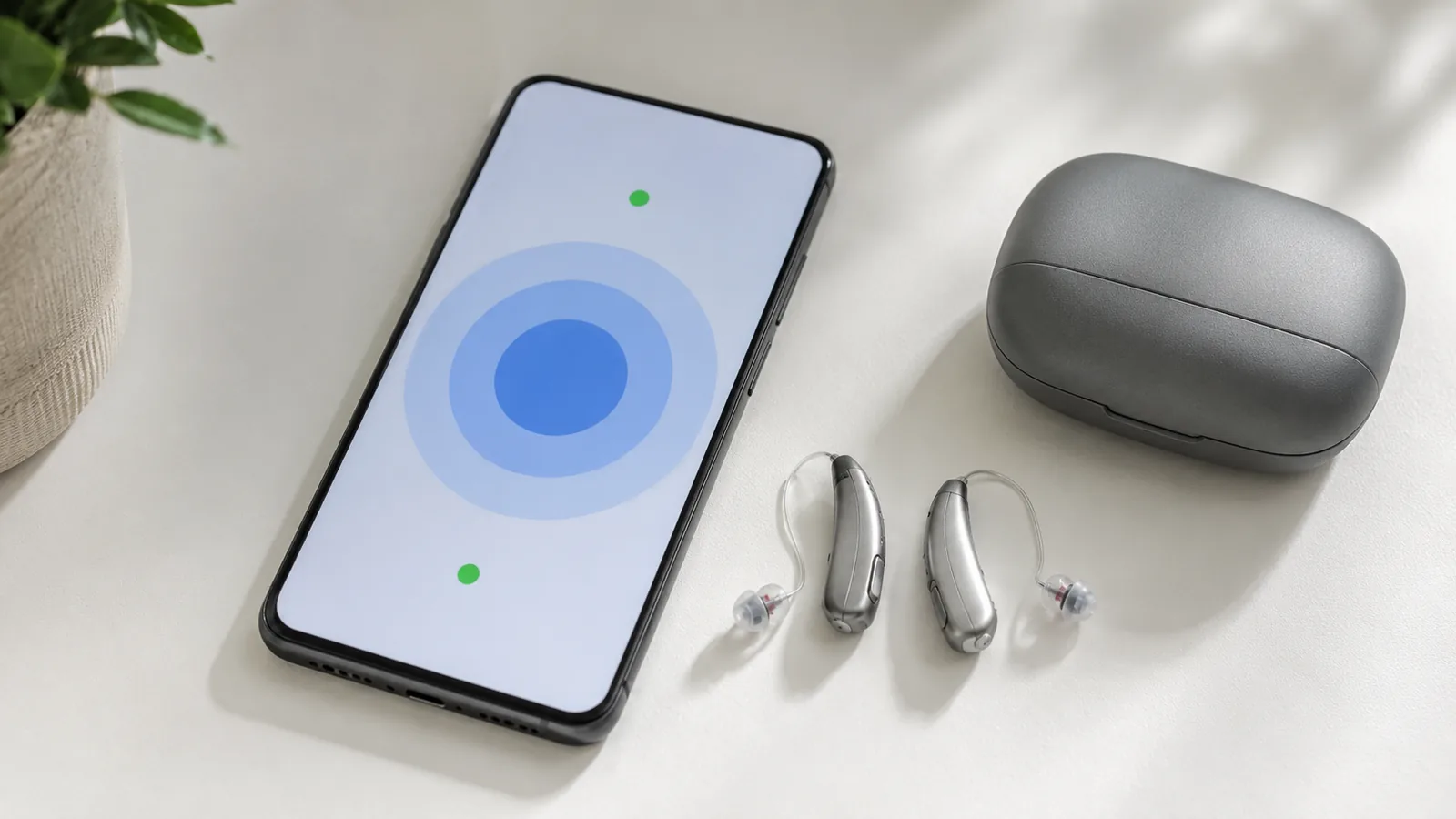

How to Connect Hearing Aids to Phones and Smart Devices focuses on pair modern hearing aids with iPhone, Android and other Bluetooth-enabled devices without losing essential hearing functions. The aim is to keep the useful depth of the original article while helping readers reach a current, practical decision faster.
Quick Verdict
- Best for: hearing-aid users setting up calls, audio and companion apps.
- Focus on: manufacturer compatibility, Bluetooth method, app permissions and fallback controls.
- Watch for: pairing steps vary by hearing-aid brand and phone; do not treat generic Bluetooth instructions as universal.
Table of contents
What to Know in 2026
Modern hearing-aid connectivity varies by brand and platform. Use the hearing-aid manufacturer’s compatibility list and companion app instructions first, and remember that OTC status does not remove the need for professional help when hearing loss is more severe or medically concerning. Official source.
Connecting hearing aids to smart devices isn’t just a convenience—it transforms how users interact with sound. Modern hearing aids leverage Bluetooth® and other wireless technologies to stream phone calls, music and notifications directly to your ears, while dedicated apps allow you to adjust volume, change listening programs and even track your health. With over 430 million people worldwide requiring rehabilitation for disabling hearing loss and the number projected to exceed 700 million by 2050who.int, accessible technology can dramatically improve quality of life. In 2023 about 72 % of hearing aids were equipped with Bluetooth connectivityelectroiq.com, underscoring how mainstream these features have become.
This comprehensive guide explains how to connect hearing aids to smart devices and explores advanced tools that make everyday listening easier. While there are regional variations—like the EU’s hearing‑aid compliance regulations—the advice here applies broadly worldwide. The article concludes with an FAQ addressing common questions.

Understanding Hearing Aid Connectivity
The prevalence of hearing loss
Hearing loss affects people of every age and region. The World Health Organization reports that over 5 % of the world’s population—about 430 million people—require rehabilitation for disabling hearing loss, and nearly 80 % of these individuals live in low‑ and middle‑income countries. By 2050, more than 700 million people (one in ten) may live with disabling hearing loss. Unaddressed hearing loss can lead to social isolation, cognitive decline and reduced access to education. Consequently, assistive technologies like hearing aids and cochlear implants play a crucial role in communication and quality of life.
Why connect your hearing aids to a smart device?
Pairing your hearing aids with a smartphone or tablet delivers several benefits:
- Wireless audio streaming: Calls, music, podcasts and navigation instructions stream directly to your hearing aids, improving clarity and eliminating the need for bulky headphonesaudibel.com.
- Personalized control: Dedicated apps allow you to adjust volume, switch programs, balance left/right sound and activate noise reduction from your phone. This level of control is especially helpful in noisy environments or when preferences change.
- Health monitoring: Some devices contain motion sensors that track steps and activity levels. Apps like Hear Share provide insights into physical activity and even share health data with caregivers.
- Remote microphone capability: Features such as Apple’s Live Listen turn your iPhone into a remote microphone that transmits sound to your hearing aidssupport.apple.com. Google’s Sound Amplifier app can also use an Android phone’s microphone to amplify nearby speechsupport.google.com.
- Find my hearing aids: Many hearing aid apps include a locator tool that helps track misplaced devices via proximity signals.
Bluetooth, LE Audio and streaming protocols
Modern hearing aids use different wireless technologies:
- Classic Bluetooth vs. Bluetooth Low Energy (LE): Classic Bluetooth provides robust connectivity but consumes more power. LE Bluetooth—used in most modern hearing aids—offers lower latency and longer battery lifehearinghealthmatters.org.
- LE Audio and Auracast: LE Audio further reduces power consumption while delivering higher audio quality. The Auracast™ broadcast system enables hearing aids to receive audio from public transmitters (like airport TVs) via a smartphone.
- Made for iPhone (MFi): Apple’s MFi hearing aids allow direct streaming without a third‑party accessory. They support features like Live Listen and automatic device switchingsupport.apple.com.
- Audio Streaming for Hearing Aids (ASHA): On Android, ASHA uses LE Audio to transmit sound from compatible devices. If your hearing aid doesn’t support ASHA, you may need a manufacturer accessory like Bernafon’s SoundClip‑Abernafon.com.
- Universal streaming solutions: Some manufacturers, such as Sonova, integrate chips that support both MFi and classic Bluetooth protocols so that the hearing aids can connect to Android, iOS and classic mobile phones.
Preparing for Pairing
Check compatibility and update firmware
Not all hearing aids and smartphones can connect. Before attempting to pair, check that:
- Your hearing aids support Bluetooth: Only Bluetooth‑enabled devices can pair with smartphones. Consult your user manual or manufacturer website.
- Your smartphone supports hearing‑aid streaming: Most iPhones with iOS 13 or later support MFi hearing aids. Android devices need to support LE Audio or ASHA.
- Firmware and operating systems are up to date: Updating your phone’s operating system and hearing aid firmware ensures compatibility and fixes potential bugs.
- Hearing aid ratings: In the United States, the Federal Communications Commission (FCC) labels phones as hearing‑aid compatible (HAC) with “M” (microphone) and “T” (telecoil) ratings. Phones should have ratings of M3/T3 or higheramplifonusa.com. Although the EU and other regions have different certification systems, similar guidance applies—consult local regulations.
Gather necessary accessories
Depending on your devices, you may need additional tools:
- Manufacturer apps: Many brands (e.g., Bernafon, ReSound, Starkey) have companion apps that facilitate pairing and offer advanced controls. Download the relevant app from the Apple App Store or Google Play before starting.
- Streaming accessories: If your Android phone doesn’t support ASHA, you might need an accessory such as Bernafon’s SoundClip‑A or Starkey’s Remote Microphone Plus for streaming.
- Charger or fresh batteries: Fully charge rechargeable hearing aids or insert fresh batteries. Pairing can be power intensive.
Step‑by‑Step Guide: Pairing Hearing Aids With iPhone
Apple’s MFi hearing aids offer the most seamless pairing. The following steps are based on Apple’s official user guide and apply to iOS 18 and later.
- Turn off Bluetooth on other devices. If your hearing aids are paired to a nearby Mac or iPad, disable Bluetooth on those devices to avoid interference.
- Enable Bluetooth on your iPhone. Go to Settings > Bluetooth and ensure the toggle is on.
- Open Accessibility settings. Navigate to Settings > Accessibility > Hearing Devices.
- Power‑cycle your hearing aids. Turn your hearing aids off and then back on to enter pairing mode. If you use disposable batteries, open and close the battery door; for rechargeable devices, remove them from the charger or hold the lower button for two seconds.
- Select your hearing aids. When your hearing aids appear under MFi Hearing Devices, tap their name and follow the on‑screen prompt. Pairing can take up to a minute. Avoid streaming audio until you hear a series of beeps indicating completion.
- Confirm automatic reconnection. Once paired, your hearing aids automatically reconnect when turned on. You don’t need to repeat the pairing process unless you reset your device.
Adjust hearing aid settings on iPhone
After pairing, you can control your hearing aids in several ways:
- Settings: Go to Settings > Accessibility > Hearing Devices > MFi Hearing Devices to adjust ambient microphone volume, battery status, audio routing, equalization and ringtones.
- Triple‑click shortcut: If you’ve set up the Accessibility Shortcut, triple‑click the side or Home button, tap Hearing Devices and adjust settings.
- Control Center: Add the Hearing Devices button to Control Center. Tap it to check battery status, control Live Listen and choose which ear receives streaming audio.
- Lock Screen: Enable Control on Lock Screen to manage these functions without unlocking your phone.
Step‑by‑Step Guide: Pairing Hearing Aids With Android Devices
There are two primary methods for pairing hearing aids on Android: Connected Devices (works with all Bluetooth hearing aids) and Accessibility > Hearing Devices (best for ASHA‑compatible devices). Both methods come from Google’s Accessibility documentationsupport.google.com.
Method 1: Pair via “Connected devices”
- Turn on your hearing aids and put them in pairing mode. This usually involves closing the battery door or pressing the power button for two seconds.
- Open Settings on your Android device.
- Tap Connected devices > Pair new device.
- Select your hearing aids from the list. If pairing two devices, wait for the first one to connect before selecting the second.
- Adjust settings by tapping the gear icon next to your hearing aids. Here you can rename the device or choose whether calls and media audio stream to the hearing aid.
Method 2: Pair via “Accessibility > Hearing Devices” (ASHA)
- Open Settings on your Android device.
- Tap Accessibility > Hearing devices > Pair new device.
- Choose your hearing aids from the list. Ensure they’re in pairing mode.
- Repeat for the second device if you have two hearing aids.
- Create a shortcut by tapping Accessibility > Hearing devices > Hearing device shortcut. This adds a quick toggle to your accessibility menu for connecting or disconnecting your aids.
Alternative: Pair through a manufacturer app (Bernafon example)
Many hearing aid makers provide dedicated apps for pairing and control. The steps below summarise Bernafon’s pairing instructions; similar steps apply to other brands:
- Install the app (e.g., Bernafon App) from Google Play.
- Place your hearing aids close to your phone (within about 20 cm/7.9 in).
- Ensure Bluetooth is on in your phone’s settings.
- Open the app. It will automatically search for your hearing aids.
- Restart your hearing aids (close and open battery door or power button) so they enter pairing mode.
- Select your hearing aids when the app detects them and follow the prompts.
- If your phone doesn’t support ASHA, use a streaming accessory like SoundClip‑A. Pair your aids to SoundClip‑A first, then pair SoundClip‑A to your phone.
Step‑by‑Step Guide: Pairing Through Bluetooth Accessories (Other Brands)
Some devices—particularly older models—require an external streamer to connect to smartphones. For instance, Phonak hearing aids use the Phonak TV Connector or ComPilot to stream audio, while ReSound offers the Unite Phone Clip+. Pairing usually follows this sequence:
- Pair hearing aids to the accessory using manufacturer instructions.
- Pair the accessory to your phone via Bluetooth (Settings > Bluetooth > Pair new device).
- Open the companion app to configure audio routing.
Refer to your product’s manual for details. Manufacturers often provide video tutorials and support pages.
Advanced Features and Tips
Live Listen: Turn your iPhone into a remote microphone
Apple’s Live Listen feature sends audio from your iPhone’s microphone to your MFi hearing aids or AirPods. To use Live Listen:
- Connect your hearing aids or AirPods to your iPhone.
- Open Control Center and tap the Hearing Devices button. Choose your device and tap Live Listen. If you don’t see the icon, add it via Settings > Control Center.
- Alternatively, triple‑click the side or Home button and select Live Listen.
- If you prefer the Settings route, go to Settings > Accessibility > Hearing Devices and turn on Live Listen.
- Position your iPhone near the sound source (e.g., place it on a podium during a lecture) for better speech clarity.
Live Listen is particularly useful in noisy environments such as restaurants or public meetings. Remember to turn it off when not in use to conserve battery.
Sound Amplifier: Android’s remote microphone and noise filter
Google’s Sound Amplifier app (pre‑installed on Pixel 3 and newer) amplifies ambient sound and filters noise. Key steps:
- Download or open Sound Amplifier. Connect wired or Bluetooth headphones.
- Turn on Sound Amplifier in Settings by navigating to Accessibility > Sound Amplifier > Open Sound Amplifier.
- Adjust settings like Noise reduction and Boost quiet sounds to customise amplification.
- In Conversation mode (Pixel 3+ only), point the phone’s camera at your conversation partner to focus on their voice while blocking background noise.
- To use Sound Amplifier as a remote microphone, place your phone near the sound source and listen through your headphones.
Sound Amplifier is not a substitute for a hearing aid but offers additional support in challenging listening environments.
Utilizing hearing aid apps for extra features
Apps provided by manufacturers or third parties can unlock advanced capabilities:
- Thrive Hearing Control and My Audibel (Audibel/Starkey): Offer remote volume control, program changes, language translation, fall detection and activity tracking.
- Find My Hearing Aids: Helps locate misplaced devices using proximity sensors.
- Health monitoring: Apps like Hear Share track steps and social engagement.
- Automatic device switching: If you pair your hearing aids with multiple Apple devices, audio automatically switches when you interact with another device. Sign in with your Apple account on all devices and connect them to the same Wi‑Fi network.
Adjusting sound on the fly
Beyond pairing, smart devices let you optimise listening:
- Change hearing aid presets via your phone’s settings (Android) or app. Adjust programs for quiet rooms, noisy restaurants, driving or outdoor settings.
- Use Quick Settings or Control Center to monitor battery life, connect/disconnect and route audio.
- Control ambient volume or boost frequencies using Sound Amplifier’s sliders.
- Route audio for calls and media through your hearing aids or phone speaker as needed (e.g., to conserve battery or share music with others).
Troubleshooting and Best Practices
Even with proper setup, issues may arise. The following tips draw from Amplifon’s troubleshooting guide and general best practices.
1. No connection or intermittent audio:
- Make sure Bluetooth is enabled on both devices.
- Verify that the hearing aids are close to the phone (within a few feet) and not connected to another device.
- Power‑cycle both the phone and hearing aids and attempt pairing again.
- For Android, check that Audio Streaming for Hearing Aids is enabled (Accessibility > Hearing devices). For iPhone, ensure that your hearing aids appear under MFi hearing devices.
- Delete old pairings in your phone’s Bluetooth list and re‑pair the devices.
- Turn off unused connectivity features like GPS or Wi‑Fi when streaming audio.
- Use streaming accessories or external mics (e.g., Roger devices) to extend hearing aid battery life.
- Ensure your phone and hearing aids are running the latest firmware/software.
- For Android Sound Amplifier, switch to wired headphones for better latency and quality.
- Avoid interference by turning off other Bluetooth devices and staying clear of sources of electromagnetic noise (microwaves, routers).
- Confirm that your hearing aids support MFi or ASHA protocols. If not, you may need an accessory.
- Older Android models may not support LE Audio; check the manufacturer’s compatibility list.
- Keep hearing aids clean and dry; moisture can disrupt electronics.
- Store hearing aids in their protective case and avoid high heat.
- Schedule regular check‑ups with an audiologist to adjust programs and ensure devices are functioning properly.
Real‑World Examples of Smart Connectivity
Streaming audio on the go
Imagine walking through a busy city while listening to a podcast. With Bluetooth hearing aids, you can stream audio directly from your smartphone—no wires, earbuds or headphones needed. Thanks to Bluetooth LE Audio, battery consumption remains low, and features like Adaptive EQ automatically adjust sound frequencies for optimal clarity. Many users say that streaming phone calls through their hearing aids feels as natural as using the phone’s receiver.
Enhancing conversations in noisy settings
At a crowded restaurant, conversation can be difficult even for people with normal hearing. By enabling Live Listen on your iPhone and placing it near your conversation partner, you stream their voice directly into your hearing aids. Alternatively, Android users can activate Sound Amplifier’s conversation mode and point the phone’s camera toward the speaker.
Using smartphone apps for holistic health
Advanced hearing aids now double as fitness trackers. For example, Audibel’s Intrigue AI and Arc AI hearing aids have built‑in sensors that track steps and activity levels; pairing them with the Hear Share app enables users to monitor physical activity and share the data with healthcare providers.
Connecting multiple devices seamlessly
With MFi hearing aids and the Apple ecosystem, audio automatically switches between your iPhone, iPad and Mac when they’re logged into the same Apple ID and Wi‑Fi network. For example, if you’re streaming music from your iPad and a call comes in on your iPhone, the audio automatically switches to the phone so you can answer without fiddling with settings.
Useful Internal Links
For further reading about devices and audio technologies, check out these articles on FrediTech:
- AirPods Pro (2nd Generation) Review – Explore the features, design improvements and audio quality of Apple’s latest earbuds AirPods Pro (2nd Generation): A Comprehensive Review.
- Ultimate Guide to iPhone Maintenance – Learn how to keep your iPhone running smoothly and prolong its battery life Ultimate Guide to iPhone Maintenance.
- Guide to Noise‑Canceling Headphones – For an in‑depth look at premium noise‑canceling headphones, read Bose QuietComfort Ultra: The Ultimate Guide to Premium Noise‑Canceling Headphones.
These resources complement your understanding of smart devices and audio accessories.
Frequently Asked Questions (FAQ)
Do all hearing aids support Bluetooth?
No. While a large share of models today include Bluetooth, some basic or legacy devices don’t. Check your user manual or ask your audiologist to confirm your specific model’s capabilities.
Can I connect my hearing aids to multiple devices?
Yes. MFi (Made for iPhone) hearing aids can auto-switch among Apple devices signed in to the same Apple ID on the same Wi-Fi network. On Android, you can pair to multiple devices but may need to manually select which one to stream from in Bluetooth settings.
What if my phone isn’t compatible with my hearing aids?
Some aids require LE Audio or ASHA. If your Android phone lacks these, consider a manufacturer accessory (e.g., a clip-on streamer like SoundClip-A) that bridges compatibility. iPhone users can choose MFi-compatible aids for seamless connectivity.
How do I troubleshoot pairing issues?
Ensure Bluetooth is on, devices are close, and the aids aren’t connected elsewhere. Restart your phone and hearing aids, forget/remove old pairings, then re-pair. Updating the hearing-aid firmware and your phone’s OS often resolves issues.
What is Live Listen, and is it only for hearing aid users?
Live Listen turns an iPhone into a remote microphone, streaming sound to MFi hearing aids or to AirPods/Beats. It’s helpful for amplifying speech in noisy environments and isn’t limited to hearing-aid users.
Does connecting hearing aids drain batteries faster?
Streaming increases power use. To reduce drain, disable unused phone features (like GPS/Wi-Fi when not needed), prefer LE Audio where supported, and consider external remote mics so the hearing aids don’t work as hard.
Are there security or privacy concerns when streaming audio?
Bluetooth streams are encrypted, but you should only install manufacturer apps from official stores and keep them updated. Avoid pairing in public spaces and remove old/unused pairings to reduce exposure.
Conclusion
Smart devices have revolutionised how people with hearing loss engage with the world. Whether you use an iPhone or an Android phone, pairing your hearing aids opens up direct audio streaming, remote microphone functionality and personalised hearing control. Start by verifying compatibility and updating firmware, then follow the appropriate pairing steps—via MFi settings on iPhone or Connected devices/Accessibility on Android. Explore advanced features like Live Listen and Sound Amplifier to improve conversations in challenging environments. Finally, leverage manufacturer apps for health tracking, remote adjustments and locating lost devices. With the right setup and a bit of practice, you’ll enjoy clearer sound, greater independence and a more connected life.
In today’s connected world, integrating your hearing aids with smart devices can transform your listening experience. Whether you’re streaming audio, taking calls, or using specialized apps, smart connectivity allows you to control your hearing aids more efficiently and tailor them to your personal needs. This guide explains why connecting your hearing aids to smart devices is essential, walks you through the setup process, provides troubleshooting tips, and highlights advanced features—all designed to help you make the most of your technology.
Author: Wiredu Fred, technology writer and accessibility advocate. Fred has spent years reviewing consumer electronics and researching assistive technologies for hearing health. His work emphasises evidence‑based advice and inclusive design. When not writing, he volunteers with local audiology clinics to teach older adults how to use digital hearing tools.
Bottom Line
A good hearing-aid decision starts with candidacy and fit, then moves to features and price. Pairing steps vary by hearing-aid brand and phone; do not treat generic bluetooth instructions as universal. When symptoms or hearing difficulty fall outside the OTC category, professional assessment is the safer next step.
![Linner Mercury OTC Hearing Aids [FSA & HSA Eligible]](https://freditech.com/wp-content/uploads/2026/08/359-linner-mercury-otc-hearing-aids-fsa-hsa-720x450.webp)
