

Fact-checked: September 2, 2026. Prices, availability and announced features can change by market.
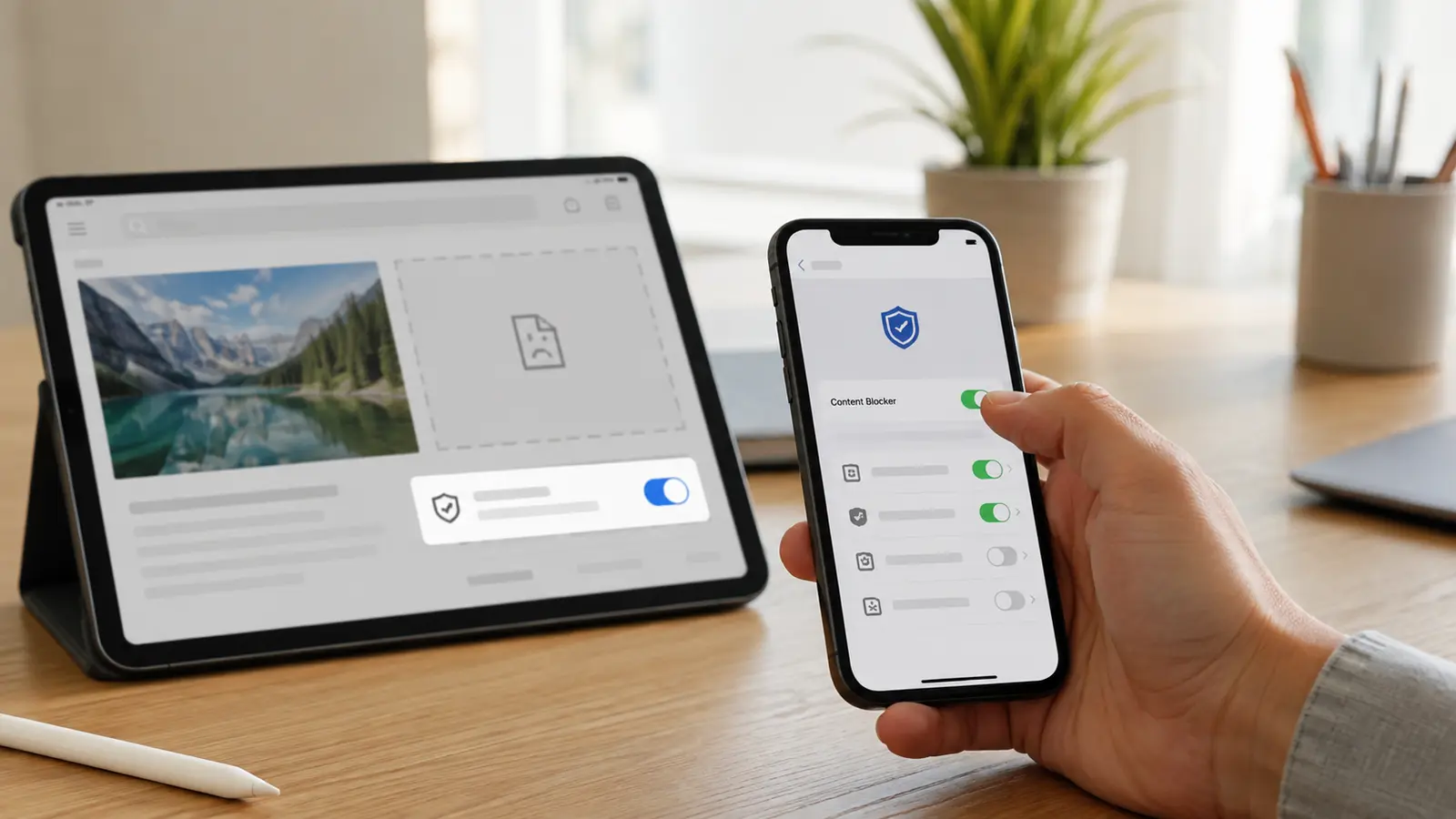
Firefox for iPhone and iPad began rolling out a built-in ad blocker worldwide on September 1, 2026. It is disabled by default. On an updated app, the current path is Settings → Browsing → Ad Blocker, where users can enable filtering and manage behavior.
The feature uses Apple’s WebKit Content Blocker framework and the community-maintained EasyList rules. It can remove many third-party display ads and related requests before a page renders, reducing clutter and some tracking. It cannot reliably block every site-served promotion, search ad, video insertion or Firefox-sponsored shortcut.
Because all iOS browsers use Apple’s underlying WebKit rules, this is not the same architecture as a full desktop Firefox extension. It is still valuable: the built-in option makes basic filtering available without installing a separate blocker or granting it broader app access.
Table of contents
At a Glance
| Key fact | Verified position |
|---|---|
| Rollout | Worldwide beginning September 1, 2026 |
| Devices | Supported Firefox builds on iPhone and iPad |
| Default | Off; user must enable it |
| Path | Firefox Settings → Browsing → Ad Blocker |
| Technology | Apple WebKit Content Blocker with EasyList rules |
| Blocks | Many third-party display ads and matching network requests |
| Does not guarantee | Removal of site-served ads, search ads, every video ad or sponsored shortcuts |
| Exceptions | Can be disabled for a site when blocking breaks content |
How to Turn On the Firefox Ad Blocker
- Open the App Store and update Firefox to the latest version available for your device.
- Open Firefox and tap the menu button.
- Choose Settings.
- Under Browsing, open Ad Blocker.
- Turn the blocker on.
- Reload an open page or open a new tab to test it.
Mozilla announced the rollout rather than one universal version number for every region. The safest requirement is the current App Store release that exposes the setting. If the menu is absent after updating, force-close Firefox once, confirm iOS/iPadOS compatibility and allow time for staged enablement.
How WebKit Content Blocking Works
On iOS, a content-blocking ruleset tells WebKit which network requests or page elements match known advertising patterns. Matching requests can be stopped before they download, which may improve page speed and reduce data use. EasyList provides widely used filter rules and is updated as advertising systems change.
The blocker does not read and rewrite the web with unlimited extension privileges. Apple constrains the framework for performance and privacy. That reduces risk but limits what can be removed. A publisher serving promotional material from the same domain as article assets can be harder to distinguish safely.
What It Blocks—and What It Does Not
| Content | Expected result | Why |
|---|---|---|
| Common third-party display ads | Often blocked | EasyList matches known domains and elements |
| Third-party tracking tied to ad requests | Often reduced | Request may never load |
| Site-served/native promotion | May remain | Shares the publisher’s own delivery path |
| Search advertising | May remain | Integrated into results and allowed by current scope |
| Firefox sponsored shortcuts | Separate setting | Browser UI is not ordinary webpage advertising |
| All video ads | Not guaranteed | Delivery and playback techniques vary |
Advertising and tracking overlap, but blocking ads is not complete privacy protection. Sites still receive your IP address and can use logins, first-party storage or fingerprinting. Combine filtering with sensible cookie controls, private account behavior and current software.
Disable Blocking for One Broken Site
- Open the site that is not working.
- Open Firefox’s site/page menu.
- Choose the site-specific ad-blocking control.
- Disable blocking for that site only.
- Reload and test login, video, checkout or comments.
- Re-enable later if the site changes.
A per-site exception is better than switching off protection globally. Use it only when necessary. If the page still fails, the cause may be a cookie restriction, VPN, DNS filter, network outage or the site itself—not the new blocker.
Troubleshooting When Blocking Does Not Work
First confirm the toggle remained on, then reload without an old cached page. Some ads are inserted after consent choices or originate from the same site, so their presence does not prove the feature is broken. Compare one known ad-heavy page before and after enabling rather than relying on a single sponsored result.
If Firefox crashes or pages become widely blank, update iOS and Firefox, disable the blocker temporarily and restart. Avoid deleting browser data until bookmarks and saved logins are synchronized or backed up. Report a reproducible site through Mozilla’s support channel with the URL and app version.
Privacy, Publishers and Responsible Use
Blocking can improve privacy because fewer advertising requests leave the device, but Firefox may still offer sponsored shortcuts and search arrangements controlled elsewhere in settings. Review those separately. EasyList use does not mean Mozilla sees a list of every blocked ad; filtering occurs through the browser framework.
Ads fund many independent sites. Users can allow a trusted publisher, subscribe, donate or accept privacy-respecting advertising. The security case for blocking remains valid on sites with deceptive redirects or excessive scripts, but no blocker replaces caution around downloads and login prompts.
Should You Enable It?
Most Firefox iOS users should try it. The setting is reversible, uses Apple’s constrained content-blocker system and can make cluttered pages easier to read. Keep site exceptions narrow and understand that native advertising, search ads and browser-sponsored elements may remain.
FrediTech verdict
Enable the blocker, test your essential sites and use per-site exceptions when needed. It is a useful baseline—not a complete privacy suite and not a promise of zero ads.
Performance and Battery Expectations
Blocking network requests can reduce transferred data and page work, but the effect varies by site and Apple’s WebKit implementation. It is not a guaranteed battery-saving mode. Measure with Screen Time and data-usage trends across ordinary browsing rather than one synthetic page, and remember that video playback, signal strength and display brightness usually dominate battery use.
A broken layout can also cost time and extra reloads, erasing any efficiency gain. Keep Firefox and iOS updated, restart the tab after changing the blocker and clear site data only for the affected domain when possible. Whole-browser deletion should be a last resort because it can sign the user out and remove useful local state.
Frequently Asked Questions
How do I turn on Firefox ad blocking on iPhone?
Update Firefox, then open Settings → Browsing → Ad Blocker and enable it.
Is it enabled automatically?
No. Mozilla ships it disabled by default.
Does it work on iPad?
Yes, the rollout covers supported Firefox builds on iPhone and iPad.
Why do I still see ads?
Some site-served, search, video and browser-sponsored content falls outside EasyList or the content-blocker scope.
How do I fix a site that breaks?
Disable blocking for that site from the site/page menu, reload and keep global protection on.
Does Firefox use its desktop extension system on iOS?
No. It uses Apple’s WebKit Content Blocker framework, which has different capabilities and limits.
Related FrediTech Guides
- Internal-link opportunity: FrediTech iPhone privacy guide (URL to be assigned)
- Internal-link opportunity: FrediTech best mobile browsers comparison (URL to be assigned)
Sources and Verification
Rollout, default state, menu path, WebKit framework and EasyList use were checked against Mozilla’s announcement and independent coverage. Blocking outcomes vary by site and rule updates.