
Choosing a laptop becomes much easier once you define the workload, budget and expected support life. From there, processor, memory, storage, display, battery and ports can be compared with purpose instead of guesswork.
Quick Verdict
- Best for: buyers comparing laptops by real workload rather than marketing tiers.
- Focus on: performance, battery, display, keyboard, ports, support life and repairability.
- Watch for: thin designs and premium branding can hide compromises in cooling, ports or value.
Table of contents
Introduction
Buying a laptop today can feel overwhelming. With hundreds of models spanning premium ultrabooks, gaming rigs and budget notebooks, it’s difficult to know where to start. Should you prioritise the processor or the graphics card? Do you need a high‑refresh display? What about battery life or portability? These questions matter because a laptop is often a long‑term investment. According to data from TechGuided, an entry‑level laptop under USD 700 tends to last 2–4 years, mid‑range models priced between USD 700 and USD 1,000 last 3–5 years, and premium devices above USD 1,000 can last 4–7 yearstechguided.com. Making the right choice now ensures your device stays relevant longer.
This guide breaks down the essential factors to consider when buying a laptop in 2025. It draws on credible sources and real‑world examples to help you match technical specifications to your needs. We’ll cover core components (processor, memory, storage, graphics, display), battery life and portability, connectivity, operating systems and brand considerations. A step‑by‑step buying process and an FAQ section at the end provide quick answers to common questions. Let’s get started.

1. Determine Your Use Case
Before diving into specs, be clear about how you’ll use your laptop. Typical use cases include:
- General productivity: Browsing, word processing, email, video calls. These tasks don’t require top‑tier hardware.
- Content creation: Photo/video editing, graphic design, 3D modelling. You’ll need a powerful CPU, dedicated GPU and colour‑accurate display.
- Gaming: Modern games demand strong processors, high‑performance graphics cards and fast refresh rates.
- Business/education: Portability, battery life and durability matter for students and professionals who carry their laptops daily.
- Programming/data science: Multicore CPUs, plenty of RAM and sometimes GPU acceleration (for machine learning) are important.
Defining your primary tasks ensures you don’t overspend on features you don’t need or, worse, under‑spec your device.
2. Processor (CPU)
The central processing unit (CPU) is the brain of the computer. Key metrics include core count, clock speed and generation.
2.1 Core Count and Performance
Modern laptops use multicore processors. A multi‑core CPU contains multiple processing units on one chip. According to the multi‑core processor article, combining cores reduces space and power consumption compared to separate single‑core chipsen.wikipedia.org. For everyday tasks, a quad‑core (4‑core) CPU suffices; more demanding workloads benefit from 6 or 8 cores. Intel’s Core Ultra or Core i5/i7 and AMD’s Ryzen 5/7 series provide good balance for productivity. High‑end users may consider Core i9 or Ryzen 9 with 8–16 cores.
2.2 Clock Speed and Power
Clock speed (measured in GHz) reflects how many cycles a processor can perform per second. However, higher clock speeds increase power consumption and heat. The CPU article notes that as clock rates increase, CPUs consume more energy and generate more heat, necessitating better coolingen.wikipedia.org. Laptop CPUs often run at lower clocks than desktops to conserve battery life. When comparing laptops, look at base and turbo frequencies—turbo values indicate short bursts of high performance; base clocks reflect sustained speeds.
2.3 Intel vs. AMD vs. Apple
- Intel: The 12th/13th generation Core processors (Alder Lake/Raptor Lake) introduce hybrid architectures, combining performance and efficiency cores. They offer strong single‑threaded performance and integrated graphics.
- AMD: Ryzen 7000 series uses 5 nm nodes and generally delivers superior multicore performance per dollar, with integrated Radeon graphics on some APUs.
- Apple Silicon: For macOS users, M‑series chips (M1, M2, M3) combine CPU, GPU and neural engines in a single system‑on‑chip. They deliver excellent performance per watt and long battery life.
When choosing a CPU, prioritise higher core counts and recent generations for futureproofing and better energy efficiency.
3. Memory (RAM)
Random Access Memory (RAM) determines how many applications you can run simultaneously without slowdown. Volatile RAM stores data only while powered on, unlike non‑volatile ROM. Choosing the right amount is crucial:
- 8 GB: Minimum for web browsing and office tasks. Budget laptops may start here, but multitasking will be limited.
- 16 GB: Ideal for most users, allowing smooth performance with multiple browser tabs, office suites and basic creative work.
- 32 GB or more: Recommended for video editing, 3D modelling, gaming and programming with large datasets.
3.1 DDR4 vs. DDR5
Newer laptops use DDR5 memory. According to the DDR5 SDRAM article, DDR5 reduces power consumption and doubles bandwidth compared to DDR4en.wikipedia.org. This means DDR5 modules provide faster data rates and improved efficiency. Many mainstream laptops still use DDR4 to keep costs down; DDR5 is more common in premium gaming or professional machines.
3.2 RAM Speed and Dual‑Channel
Memory speed (MHz) influences performance, particularly with integrated graphics. Dual‑channel configurations (pairing two identical RAM sticks) double memory bandwidth. If you can upgrade, go for dual‑channel to improve integrated GPU performance. Note that some slim laptops have soldered RAM, making upgrades impossible—check this before purchase.
4. Storage
Laptop storage determines how much data you can keep locally and how fast you can access it. The choice typically lies between HDDs, SATA SSDs and NVMe SSDs.
4.1 HDD vs. SSD
Hard disk drives (HDDs) store data on spinning disks. They offer high capacities at low cost but are slow and prone to mechanical failure. In contrast, solid‑state drives (SSDs) use flash memory, providing much faster read/write speeds, lower latency and no moving parts. As the Diffen comparison notes, SSDs access data randomly, unlike HDDs which read sequentially. The article also states that SSDs use less power and generate less heat. However, HDDs still offer larger capacities (1 TB and above) at lower pricesdiffen.com.
Recommendation: Choose an SSD as your primary drive (256 GB or 512 GB NVMe for most users). If you need extra space for large media files, consider a secondary HDD or an external drive.
4.2 NVMe vs. SATA
NVMe SSDs use the PCIe bus, offering speeds up to 3–7 GB/s, whereas SATA SSDs max out around 550 MB/s. NVMe drives are typically more expensive but drastically reduce boot and load times. For general use, a SATA SSD suffices; for video editing or gaming, opt for NVMe.
4.3 Upgradability
Some laptops allow drive upgrades via an M.2 or 2.5 inch slot. Ultrabooks or MacBooks may solder storage, so check if future expansion matters to you.
5. Graphics: Integrated vs. Discrete
If you play games, edit videos or use 3D applications, graphics capability matters. Laptop GPUs fall into two categories:
- Integrated graphics: Built into the CPU, these share system memory. They offer low cost and power consumption but lower performanceen.wikipedia.org. Ideal for web browsing, office work and media consumption.
- Discrete graphics cards: Separate GPU with dedicated VRAM and cooling. They offload rendering tasks from the CPU, allowing higher performance for gaming, video editing and CAD. Examples include NVIDIA’s GeForce RTX series and AMD’s Radeon RX series.
When evaluating GPUs:
- Identify your needs. For lightweight gaming or basic editing, integrated GPUs like Intel Iris Xe or AMD Radeon 680M suffice.
- For high‑end gaming or professional work, look for discrete GPUs (e.g., NVIDIA RTX 4060 or AMD RX 7800M). Higher models add cost and power draw.
- Consider VRAM. Modern games and creative apps benefit from 6–8 GB VRAM or more.
6. Display and Resolution
The laptop screen influences your viewing comfort and productivity. Key parameters include size, resolution, panel type and refresh rate.
6.1 Size and Aspect Ratio
Common laptop screen sizes range from 13 inches (ultraportable) to 17 inches (desktop replacement). 14–15 inch laptops offer a good balance between portability and workspace. Aspect ratios have shifted from 16:9 to 16:10 or 3:2, providing more vertical screen space. According to the Display resolution article, 16:9 displays with 1366×768 resolution are common in budget laptops, while 1920×1080 (Full HD) or higher resolutions appear on premium modelsen.wikipedia.org.
6.2 Resolution and Sharpness
Higher resolution (Full HD, 2K, 4K) means crisper text and images but can reduce battery life. For general productivity, Full HD is adequate. Creators may prefer 2K or 4K displays with wide colour gamuts (100% sRGB or DCI‑P3) for accurate editing.
6.3 Panel Type: IPS vs. OLED vs. TN
- IPS (In‑Plane Switching): Offers wide viewing angles and good colour reproduction. Common in mainstream laptops.
- OLED: Provides deep blacks and high contrast. Suitable for content consumption and creation, but more expensive and may risk burn‑in over time.
- TN (Twisted Nematic): Cheaper but with poor viewing angles and colour accuracy; rarely recommended unless cost is the primary concern.
6.4 Refresh Rate
Standard laptop displays refresh at 60 Hz. Gaming laptops offer 120 Hz, 144 Hz, 165 Hz or even 240 Hz for smoother visuals. Higher refresh rates matter mostly in gaming or fast‑paced content.
7. Battery Life and Portability
How long your laptop lasts on a charge is critical if you’re often away from power outlets. According to TechGuided, gaming laptops usually run 2–3 hours on a single charge; laptops for simple tasks last 4–5 hours; the best ultrabooks can reach 10–12 hours or more. Battery life varies widely based on processor efficiency, screen size, brightness and workload.
7.1 Battery Capacity (Wh)
Battery capacity is measured in watt‑hours (Wh). Larger numbers generally mean longer runtime, but efficiency matters too. A 50 Wh battery in an ultrabook can last longer than a 70 Wh battery in a gaming laptop because the former has lower power consumption.
7.2 Fast Charging
Many modern laptops offer fast charging (e.g., 50% in 30 minutes). This is helpful if you frequently travel. Check whether the charger uses USB‑C Power Delivery or proprietary connectors.
7.3 Weight and Dimensions
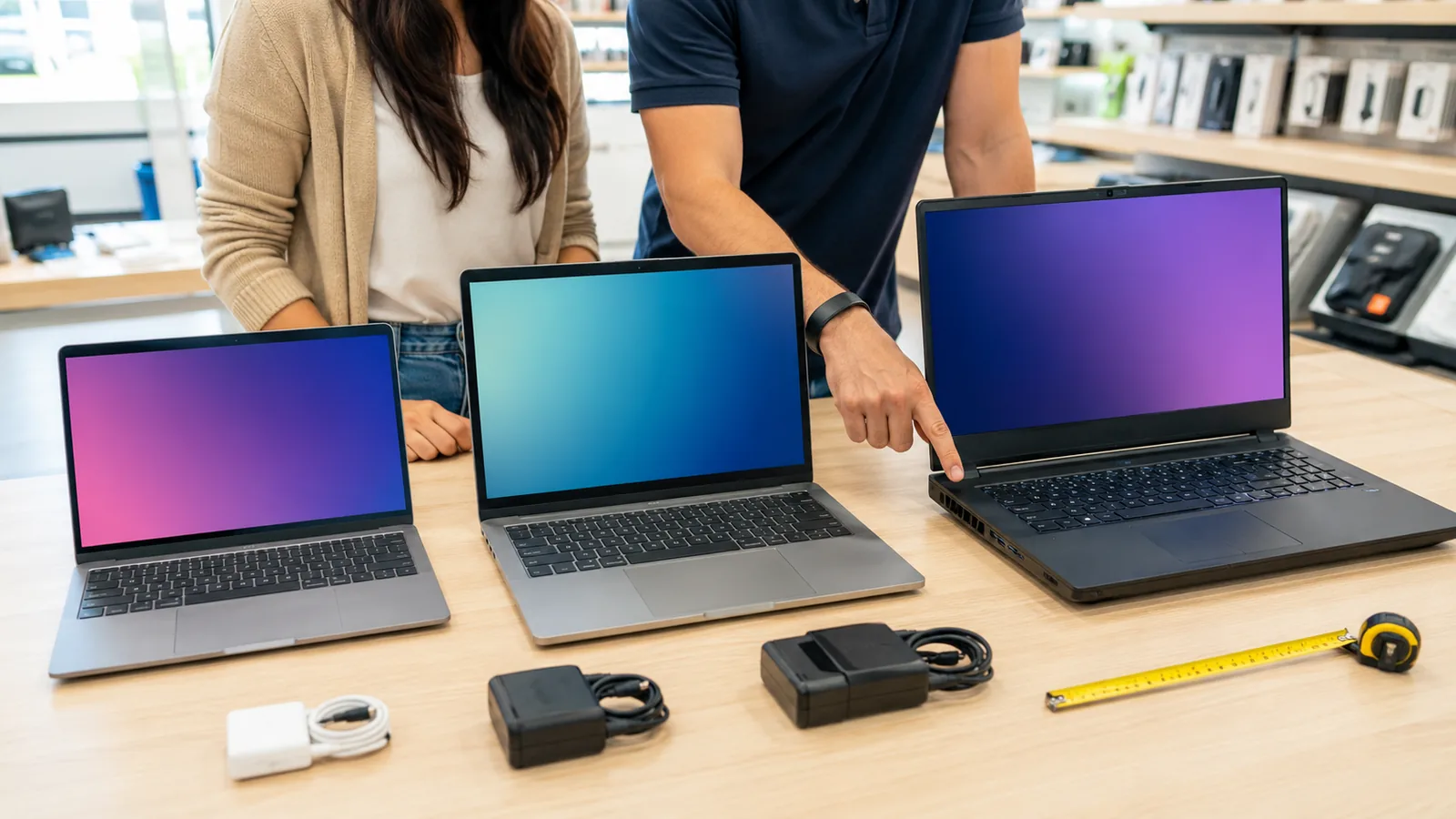
Portability ties closely to battery life. Ultrabooks typically weigh under 3 pounds and measure less than 0.7 inch thick. They sacrifice some performance and upgradeability for slimness. Traditional laptops weigh 4–5 pounds, while gaming machines can exceed 6 pounds due to larger batteries and cooling systems. Think about how often you’ll carry the laptop and balance portability against performance.
8. Keyboard, Touchpad and Build Quality
A laptop’s input devices influence comfort and productivity. Check for:
- Keyboard quality: Sufficient key travel (1 mm or more), tactile feedback and backlighting for low‑light use. Business laptops like Lenovo ThinkPad series are renowned for their comfortable keyboards.
- Touchpad: Look for precision drivers and a smooth surface. A large glass touchpad improves multi‑touch gestures.
- Build materials: Premium laptops use aluminium or magnesium alloy for durability. Plastic builds are cheaper but may flex.
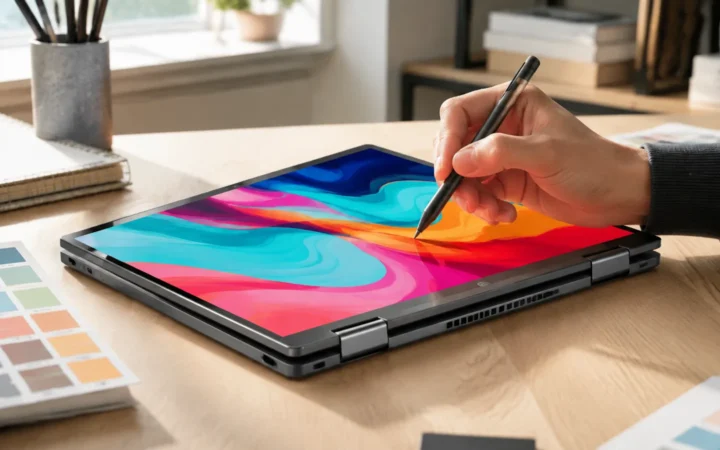
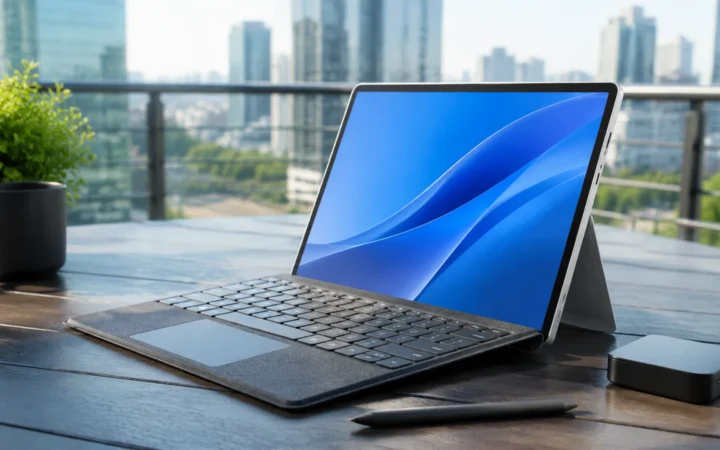
- Hinge design: Strong hinges reduce wobble. 2‑in‑1 convertibles have 360‑degree hinges; detachables have separate keyboards.
- Ports: Ensure enough USB‑A/USB‑C ports, HDMI or DisplayPort, headphone jack and SD card reader. Thin laptops may require dongles, so plan accordingly.
9. Connectivity and Wireless
Modern laptops support Wi‑Fi 6/6E and Bluetooth 5.x for faster wireless connections. Business users may need Thunderbolt 4 or USB 4.0 for high‑speed data transfers and connecting multiple monitors. Check cellular connectivity (4G LTE/5G) if you work remotely without reliable Wi‑Fi.
10. Operating Systems
- Windows: Offers the widest hardware compatibility and software ecosystem. Good for gaming, productivity and general use.
- macOS: Apple’s operating system runs on MacBooks with M‑series chips. It’s praised for stability, design, strong integration with iOS/iPadOS and privacy protections.
- ChromeOS: Lightweight operating system for Chromebooks. Great for web‑centric workloads, students and budget buyers. Limited offline app support.
- Linux: Provides open‑source flexibility for developers and privacy enthusiasts. Many laptops run Linux well, but hardware compatibility can vary.
Choose the OS based on software you need. Some manufacturers offer Linux pre‑installs; Apple restricts macOS to its hardware.
11. Budget and Value
Set a realistic budget based on your needs. Here’s a rough breakdown:
- Under USD 500: Entry‑level Chromebooks or Windows laptops. Suitable for browsing and basic tasks. Expect Intel Pentium/AMD Athlon CPUs, 4–8 GB RAM and 64–256 GB eMMC/SSD storage.
- USD 500–800: Mid‑range Windows machines with Intel Core i5/Ryzen 5, 8–16 GB RAM and 256–512 GB SSD. Good for students and light office work.
- USD 800–1,200: Premium ultrabooks or entry‑level gaming laptops. Offer high‑resolution displays, all‑day battery life and better build quality.
- USD 1,200+: High‑end ultrabooks, professional workstations or powerful gaming rigs. Features may include OLED screens, RTX 40‑series GPUs, 32 GB RAM and 1 TB NVMe storage.
Remember to factor in warranties and support. Some brands provide on‑site service or accident protection for an additional cost.
12. Step‑by‑Step Laptop Buying Process
- Identify your primary use case (general, creative, gaming, business, education).
- Set a budget and note must‑have features (e.g., battery life, weight, keyboard quality).
- Choose an operating system (Windows, macOS, ChromeOS, Linux). This may limit your brand options.
- Select the processor: For basic tasks choose Core i3/Ryzen 3; for mainstream tasks go with Core i5/Ryzen 5; for demanding work pick Core i7/i9 or Ryzen 7/9.
- Pick RAM and storage: Minimum 8 GB RAM and 256 GB SSD; upgrade to 16 GB/512 GB or higher for creative or professional work. Consider NVMe for speed.
- Determine graphics needs: Integrated graphics suffice for casual use; discrete GPUs (RTX/ Radeon) for gaming or creative tasks.
- Assess display: Choose size (13–17 inches), resolution (Full HD to 4K), panel type (IPS vs. OLED) and refresh rate (60 Hz to 165 Hz).
- Check battery life and weight: Look for manufacturer claims and third‑party reviews. Ultrabooks offer 10–12 hours; gaming laptops less.
- Evaluate build quality, keyboard and ports: Read reviews or test in person. Ensure there are enough USB/Thunderbolt ports and comfortable input devices.
- Read reviews: Check trusted sources (like Rtings or FrediTech articles) to see real‑world performance, thermal behaviour and longevity. Rtings’ meta description of their 2025 laptop roundup notes that battery life remains a critical factor for evaluating everyday laptopsrtings.com.
- Watch for deals: Prices fluctuate around Black Friday, back‑to‑school and holiday sales. Ensure any discount doesn’t compromise warranty or features.
13. Real‑World Examples
- Budget Student Laptop: Example: A student chooses a 14‑inch Chromebook with an Intel Core i3 CPU, 8 GB RAM and 128 GB SSD. It costs around USD 400, weighs just under 3 lbs and delivers up to 12 hours of battery life. The student uses Google Docs and online lectures; the limited storage isn’t a problem thanks to cloud storage. This is a practical choice for budget‑conscious users.
- Mid‑Range Ultrabook: Example: A marketing professional opts for a 13‑inch ultrabook with an Intel Core i5 processor, 16 GB RAM, 512 GB NVMe SSD and a 16:10 2.2K IPS display. Weighing 2.7 lbs and offering 10 hours of battery life, it’s ideal for frequent travel. The device costs around USD 1,000 and will likely serve for 4–5 years.
- Creative Workstation: Example: A videographer picks a 16‑inch laptop with an AMD Ryzen 9 processor, NVIDIA RTX 4070 GPU, 32 GB DDR5 RAM, 1 TB NVMe SSD and a 4K OLED screen covering 100 % DCI‑P3. Though priced above USD 2,000 and weighing 4.5 lbs, it offers superb colour accuracy and fast rendering times. The high‑refresh display ensures smooth timeline scrubbing.
- Gaming Laptop: Example: A gamer purchases a 15.6‑inch laptop with an Intel Core i7 processor, RTX 4060 GPU, 16 GB RAM and 512 GB SSD. It features a 144 Hz Full HD display and robust cooling. The battery lasts 3–4 hours for casual use, less during gaming. At USD 1,300, this configuration provides good value for high‑frame‑rate gaming.
These examples illustrate how different combinations of specs meet different needs. Use them as templates when considering your options.
14. Internal Links to FrediTech Articles
Expand your understanding of laptops by exploring related articles on FrediTech:
- 2‑in‑1 Laptops: Revolutionizing Mobile Computing for the Modern Age – Learn how convertible laptops combine tablet and notebook functionality for flexible work and play.
- Understanding Laptop Specifications – A deep dive into CPU, GPU, memory and storage terminology to demystify spec sheets.
- Everyday Laptops for Maximum Productivity: Top Picks & Essential Features – Discover our recommended models for students and professionals balancing performance and cost.
These resources complement this guide with in‑depth reviews and examples.
15. Frequently Asked Questions (FAQ)
What do I need to consider when buying a laptop?
- Use-case: Study/office, programming, design, gaming, or travel?
- Portability: Size/weight (13–14″ for mobility; 15–16″ for workspace), battery life.
- Performance: CPU/GPU appropriate to your apps; enough RAM and fast SSD.
- Display: Resolution (1080p vs 2.8K/4K), panel (IPS vs OLED), brightness, color.
- Comfort & build: Keyboard, trackpad, webcam/mics, chassis durability.
- Connectivity: USB-C/Thunderbolt/USB4, HDMI, SD, headphone jack, Wi-Fi 6/6E/7.
- Serviceability: Upgradable RAM/SSD? Warranty length? Local support?
- Budget & timing: Leave room for accessories and extended warranty/ADP.
What are 5 important things to consider when buying a computer?
- Performance: Right CPU/GPU for your workload.
- Memory & storage: 16 GB RAM baseline for most; 512 GB+ NVMe SSD.
- Display quality: Comfortable brightness, good color, matte vs glossy.
- Battery & thermals: Real-world runtime; quiet cooling.
- Ports & expandability: Today’s needs + a little future-proofing.
What do I need to buy with my laptop?
- Protection: Sleeve/case, screen protector, accidental-damage coverage.
- I/O & power: USB-C hub or dock; spare compact charger; travel adapter.
- Input & ergonomics: Wireless mouse; laptop stand; external keyboard if desk-bound.
- Storage & backup: External SSD (USB-C) + cloud backup plan.
- Networking & video: Ethernet adapter if needed; external webcam/headset for calls.
- Security: Password manager, 2FA keys/passkeys; privacy screen if working in public.
Buy essentials first (protection, backup, mouse). Add niceties later.
Is 64 GB of RAM overkill for a laptop?
For most people, yes. 64 GB makes sense for heavy virtualization (multiple VMs/containers), large data science sets, 4K/8K video editing, complex CAD, or running local AI models. Otherwise you won’t notice gains over 32 GB—and you’ll pay more and reduce battery life slightly.
How much RAM is enough?
- Basic use (web, docs, streaming): 8 GB works, 16 GB is smoother.
- General productivity & light creative: 16 GB recommended.
- Programming/multitasking, many browser tabs: 16–32 GB.
- Photo/video editing, 3D, datasets, VMs: 32–64 GB.
- Future-proofing: If soldered RAM, prefer 16–32 GB at purchase.
How much RAM for Windows 11?
Windows 11 can run on 4–8 GB, but that’s tight. Realistically:
- Comfortable baseline: 16 GB.
- Power users/creators: 32 GB.
- Pro workflows/VMs: 32–64 GB.
RAM is about concurrency. If you keep many apps/tabs open, go higher.
Which brand laptop is best?
“Best” depends on priorities (OS, build, keyboard, battery, service, price). Quick guidance:
- macOS ecosystem & battery life: Apple MacBook (Air/Pro).
- Business durability & keyboards: Lenovo ThinkPad; also HP EliteBook, Dell Latitude.
- Premium Windows ultrabooks: Dell XPS, HP Spectre, Lenovo X1/ Slim/ Yoga, ASUS Zenbook.
- Gaming: ASUS ROG, Lenovo Legion, MSI, Acer Predator, HP Omen.
- Best value: Acer Swift/Aspire, ASUS VivoBook, Lenovo IdeaPad.
- Repairability/modularity: Framework Laptop.
Check regional support/warranty and specific model reviews—lines vary year to year.
How would you rank the major laptop brands?
By category (typical standouts):
- Build quality & battery: Apple, Lenovo X1/ThinkPad T, HP Spectre/EliteBook, Dell XPS/Latitude.
- Keyboards (Windows): Lenovo ThinkPad, HP EliteBook, Dell Latitude/XPS.
- Innovation/features: ASUS (Zenbook/ROG), Lenovo (Yoga/dual-screen), Dell XPS.
- Gaming thermals/perf: ASUS ROG, Lenovo Legion, MSI high-end, Acer Predator.
- Value for money: Acer, ASUS VivoBook, Lenovo IdeaPad.
- Repairability: Framework (clear leader).
There’s no single universal #1—pick a brand that excels in the category you care about.
Gaming laptop vs regular laptop: Which one should I buy?
- Choose gaming if you need a dedicated GPU for modern games, 3D, video editing, or local AI; expect more weight, fan noise, and shorter battery life.
- Choose regular/ultrabook for portability, battery life, and quiet operation; fine for office, coding, light photo edits, and casual/indie games on integrated graphics.
Middle ground: “creator” laptops (efficient dGPU or high-end iGPU) balance power and portability.
What are the necessary laptop accessories?
- Everyday: sleeve/case, mouse, USB-C hub, external SSD, spare charger.
- Desk setup: stand, external monitor, keyboard, headset/webcam.
- Travel: compact GaN charger, power bank (USB-C PD), universal adapter.
- Security: password manager, 2FA key, privacy screen, cable lock (for libraries/cafés).
How to buy a laptop for the first time?
- List your tasks (apps, peripherals, travel frequency).
- Pick an OS (Windows/macOS/ChromeOS) that your software supports.
- Choose size (13–14″ portable; 15–16″ roomier screen).
- Spec targets (CPU tier, 16 GB RAM, 512 GB+ SSD, IPS/OLED display).
- Ports/wireless you need today and next 2–3 years.
- Read model-specific reviews (screen, thermals, noise, battery, keyboard).
- Check warranty/support options and return policy.
- Buy at the right time (seasonal sales; last-gen for value).
How to start using a new laptop?
- Update everything: OS, drivers/firmware, BIOS/UEFI.
- Secure it: enable device encryption (BitLocker/FileVault), set a PIN/biometrics, install a password manager, turn on Find My Device.
- Harden accounts: enable 2FA/passkeys; create a standard user for daily work.
- Declutter: uninstall bloatware; set privacy settings.
- Install essentials: browser, office suite, communication tools, cloud backup/sync.
- Backups: set up cloud + periodic external SSD backups; create a recovery drive.
- Tune power/trackpad: choose a battery plan; configure gestures; calibrate display (if color-sensitive work).
Is 8GB RAM enough for university?
It works, but 16 GB is safer. For humanities/business (docs, slides, research, lots of tabs), 8 GB can suffice if you’re disciplined with tabs/apps. For CS, engineering, design, or data courses, 16 GB+ is strongly recommended (IDE + browser + compilers/VMs can exceed 8 GB quickly).
Is RAM the same as memory?
In everyday usage, yes—RAM (Random Access Memory) is what people mean by “memory.” It’s fast, temporary workspace your laptop uses to keep apps responsive. Storage (SSD/HDD) is long-term; it holds files when the power is off.
Conclusion
Choosing the right laptop requires balancing performance, portability, battery life and price. By understanding how processors, memory, storage, graphics, displays and other components interact, you can prioritise features aligned with your use case. Remember that the principle of diminishing returns applies: there’s no need to spend on a high‑end GPU if you only browse the web. At the same time, underspecifying your laptop can lead to frustration and the need for a premature upgrade.
To recap:
- Identify your needs: Productivity, creative work, gaming or travel? That determines the baseline specs.
- Balance CPU and GPU: Choose a recent generation processor and determine if you need a discrete graphics card.
- Allocate enough memory and storage: 16 GB RAM and 512 GB SSD suit most users. Consider NVMe for speed.
- Don’t overlook the display: Size, resolution and colour accuracy impact comfort and productivity.
- Check battery life and build quality: A well‑built laptop with strong battery life enhances mobility and longevity.
- Set a realistic budget: Invest according to your usage; more expensive laptops generally last longer.
By following this guide and leveraging credible information sources, you’ll be equipped to purchase a laptop that meets your needs today and remains useful for years to come.
Author: Wiredu Fred – Technology educator and founder of FrediTech. I specialise in consumer technology reviews, laptop and PC recommendations, and have years of experience analysing hardware and market trends.
Bottom Line
Choose the laptop that fits the workload, support horizon and daily ergonomics rather than the one with the loudest specification sheet. A balanced system you can comfortably use and maintain usually delivers better long-term value.