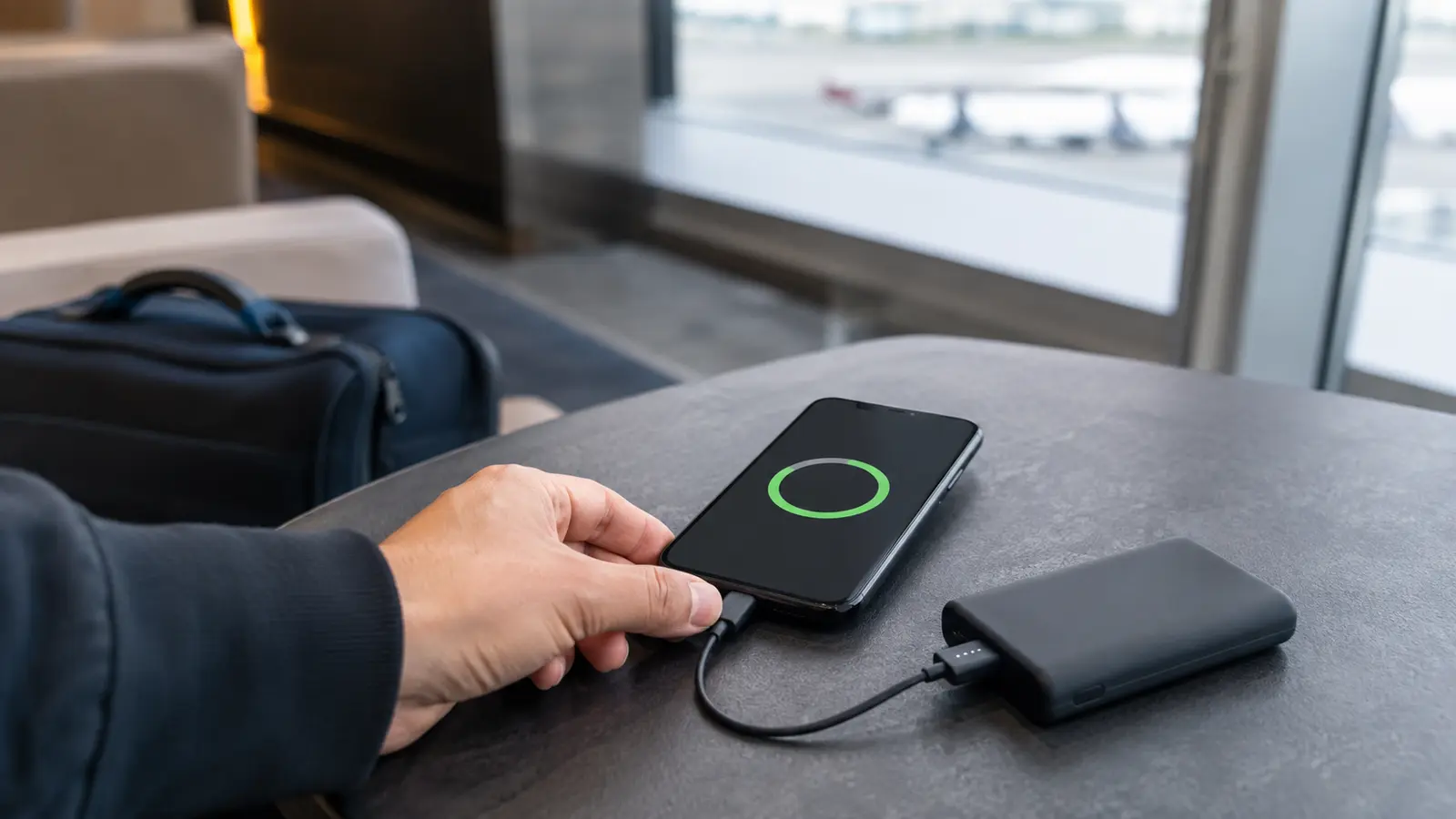

Battery life improves when charging habits, heat, signal conditions, background activity and display settings are managed together. The goal is not to chase a perfect percentage—it is to reduce unnecessary stress while keeping the phone useful.
Quick Verdict
- Best for: readers who want longer battery life without damaging usability.
- Focus on: heat, charging behavior, background activity, signal quality and battery health.
- Watch for: extreme charging rules are less useful than consistent temperature and usage management.
Smartphones have become indispensable tools in our daily lives, serving as our communication hubs, entertainment centers, and even workstations. However, one of the most common challenges users face is managing battery life. In this ultimate guide, we’ll explore proven strategies, step-by-step instructions, and advanced techniques to optimize your smartphone’s battery performance. Whether you’re a tech enthusiast or a casual user, this guide will empower you to get the most out of your device.
Table of contents
Introduction
Smartphone battery optimization is more than just extending battery life—it’s about enhancing performance, ensuring longevity, and improving your overall mobile experience. With constant innovations in battery technology, understanding how to care for your battery is crucial. In this article, you’ll learn about:
- How smartphone batteries work and common myths surrounding them.
- Essential techniques like adjusting display settings and managing background apps.
- Advanced strategies such as battery calibration and temperature management.
- Expert recommendations and tools to help you keep your device running smoothly.
By the end of this guide, you’ll have a robust toolbox of battery optimization tips to boost your smartphone’s efficiency.

Understanding Smartphone Battery Basics
How Smartphone Batteries Work
Modern smartphones rely on lithium-ion batteries—a type of rechargeable battery that offers high energy density and long life cycles. These batteries store energy in chemical form and convert it into electrical energy to power your device. Key points to understand include:
- Energy Density: Lithium-ion batteries provide a high amount of energy relative to their size.
- Charge Cycles: Every full charge-discharge cycle slightly diminishes the battery’s capacity over time.
- Temperature Sensitivity: Extreme temperatures (both hot and cold) can negatively impact battery performance and lifespan.
Understanding these basics is essential for effective battery management.
Common Battery Issues and Myths
There are many misconceptions about battery usage that can lead to poor battery management practices. Here are a few myths debunked:
- Myth: Keeping your phone plugged in all the time will “overcharge” it.
- Fact: Modern smartphones have built-in circuits to prevent overcharging.
- Myth: Running multiple apps in the background always drains more battery.
- Fact: Background apps may not always consume significant power if managed correctly.
- Myth: Fully discharging your battery before charging is the best practice.
- Fact: Lithium-ion batteries perform best when kept between 20% and 80% charge.
Essential Smartphone Battery Optimization Techniques
Optimizing your smartphone’s battery life can be achieved by adjusting settings and managing resources wisely. Below are some fundamental techniques you can implement immediately.
Adjusting Display Settings
The display is one of the most power-hungry components of your smartphone. Here’s how to manage it effectively:
Step-by-Step Guide to Optimize Your Display
- Reduce Brightness: Lower your screen brightness manually or enable adaptive brightness.
- Shorten Screen Timeout: Set your screen to turn off after a shorter period of inactivity.
- Dark Mode: Use dark mode if available; OLED screens can save power when displaying darker colors.
- Disable Unnecessary Animations: Turn off or reduce motion effects in your device’s settings.
These adjustments not only extend battery life but also reduce eye strain during prolonged usage.
Managing Background Apps and Processes
Background applications and processes can drain battery power significantly if not managed properly.
How to Manage Background Apps
- Review Active Apps: Regularly check which apps are running in the background.
- Close Unused Apps: Swipe away or force close apps that you are not actively using.
- Disable Background Refresh: Limit background data refresh for apps that don’t require constant updates.
- Monitor Battery Usage: Use your smartphone’s built-in battery usage tool to identify power-hungry apps.
Implementing these measures can free up resources and extend battery life considerably.
Optimizing Connectivity Settings (Wi-Fi, Bluetooth, GPS)
Connectivity features such as Wi-Fi, Bluetooth, and GPS consume power even when not actively in use. Consider the following steps:
- Turn Off Wi-Fi and Bluetooth When Not Needed: Disable these services if you’re not using them.
- Use Airplane Mode in Low Signal Areas: In regions with poor reception, your phone works harder to find a signal, consuming more battery.
- Manage Location Services: Restrict location services to essential apps only.
By fine-tuning these settings, you can achieve noticeable improvements in battery performance.
Software Updates and Battery Efficiency
Keeping your device’s software updated is critical. Manufacturers often release updates that improve battery management and overall efficiency.
- Update Your Operating System: Always install the latest OS updates.
- App Updates: Regularly update your apps to benefit from bug fixes and performance improvements.
- Beta Programs: Consider joining beta programs for early access to battery optimization features (if you’re comfortable with potential bugs).
For detailed guidance, visit CNET’s smartphone battery tips for expert reviews and updates.
Advanced Battery Optimization Strategies
For those looking to push battery performance even further, here are advanced strategies that go beyond basic settings adjustments.
Battery Calibration Techniques
Calibrating your battery can help ensure that the battery indicator accurately reflects its charge level.
How to Calibrate Your Battery
- Step 1: Use your smartphone until it shuts down due to low battery.
- Step 2: Charge it uninterrupted to 100%.
- Step 3: Restart your device and check for battery indicator accuracy.
- Step 4: Repeat the process every few months to maintain calibration.
This method helps in recalibrating the battery sensor, ensuring more reliable battery readings.
Use of Third-Party Battery Management Apps
There are numerous apps available that can help you monitor and optimize your battery usage.
Recommended Apps for Battery Optimization
- AccuBattery: Measures battery health and provides detailed usage statistics.
- Battery HD: Offers insights into battery usage and provides alerts for overuse.
- Greenify: Helps manage background apps by hibernating those that are not in active use.
Before installing any third-party app, read reviews and ensure it’s from a reputable developer. For more expert recommendations, visit TechRadar’s best battery apps.
Temperature Management for Battery Health
Temperature plays a critical role in battery performance. Here’s how to manage it:
- Avoid Overheating: Keep your smartphone out of direct sunlight and avoid using it in extremely hot environments.
- Keep It Cool: Use a case that offers good ventilation, and consider using a cooling accessory if you frequently use resource-intensive apps.
- Monitor Ambient Temperature: Be aware of the environmental conditions around you and adjust usage patterns accordingly.
Power Saving Modes and Customization
Most modern smartphones come equipped with power-saving modes that automatically adjust settings to conserve battery life.
How to Customize Power Saving Modes
- Activate Power Saving Mode: Enable this feature through your device settings during low battery conditions.
- Customize Settings: Adjust settings such as screen brightness, CPU performance, and background data usage.
- Scheduled Activation: Set power-saving mode to activate automatically at certain times of the day.
These modes can extend battery life significantly, especially when you’re on the go or away from a charger.
Frequently Asked Questions (FAQs)
How do I extend my smartphone battery life?
- Lower screen brightness and reduce screen timeout.
- Disable background refresh for non-essential apps.
- Optimize connectivity (turn off Wi-Fi, Bluetooth, GPS when unused).
- Use built-in power-saving modes when needed.
- Keep your OS and apps updated.
What settings should I adjust to save battery?
Display: Reduce brightness, enable dark mode, set shorter screen timeouts.
Connectivity: Turn off unused wireless features; limit location access to “While Using”.
Background activity: Disable unnecessary notifications and background refresh for low-priority apps.
Are battery management apps safe to use?
Generally yes—if reputable. Always read reviews, check ratings, and verify the developer. Avoid apps requesting excessive permissions. Note: on iOS, third-party apps can’t truly “optimize” battery beyond reports; on Android, choose well-known utilities only.
How often should I calibrate my battery?
Only if the percentage indicator seems inaccurate (e.g., jumps/shuts off early). Every 2–3 months is fine if needed. Quick method:
- Charge to 100% and keep charging for ~30 more minutes.
- Use normally until the phone powers off.
- Charge uninterrupted back to 100%.
This helps the OS re-learn the battery gauge; it doesn’t “heal” the battery.
Does power-saving mode affect performance?
Yes—slightly. Power-saving modes throttle performance and background tasks to extend life, but essential functions remain. Disable temporarily for gaming, video editing, or other intensive tasks.
Can environmental factors affect battery life?
Absolutely. Avoid extreme heat or cold. Don’t leave the phone in direct sun, on a hot dashboard, or in freezing environments—temperature stress accelerates battery wear.
Is it necessary to replace my battery periodically?
Over 1–2 years (or a few hundred cycles), capacity declines. If you notice rapid drain or unexpected shutdowns, consider a battery replacement through the manufacturer or a trusted repair service.
Conclusion
Optimizing your smartphone battery life is all about balancing your device’s performance with smart management techniques. From adjusting display settings and managing background apps to advanced strategies like battery calibration and temperature control, the steps outlined in this guide can help you extend battery life and enhance overall efficiency.
Final Thoughts
Keeping your smartphone’s battery in optimal condition doesn’t have to be complicated. By implementing the practical strategies discussed—from basic settings adjustments to advanced management techniques—you can significantly improve battery performance and extend your device’s lifespan. Remember, a little effort goes a long way in ensuring that your smartphone remains a reliable companion in your busy life.
For additional insights on mobile optimization, consider exploring related articles such as How to Extend Your Smartphone Battery Lifespan and Best Value Tech Gadgets 2025. Stay informed and make the most out of your technology investments.
External Resources
- Consumer Reports: For independent reviews and battery performance tests, visit Consumer Reports.
- CNET: Get expert insights on the latest battery optimization trends at CNET.
- TechRadar: Read detailed guides and reviews on smartphone battery optimization at TechRadar.
Empower your smartphone and maximize its battery potential today!
Don’t forget to subscribe, comment, and share this guide with others who can benefit from improved battery performance.
Happy optimizing and here’s to longer battery life!
Bottom Line
Battery care works best when it reduces heat and unnecessary stress without making the phone inconvenient to use. Healthy charging habits, updated software and realistic settings are more useful than obsessive percentage rules.