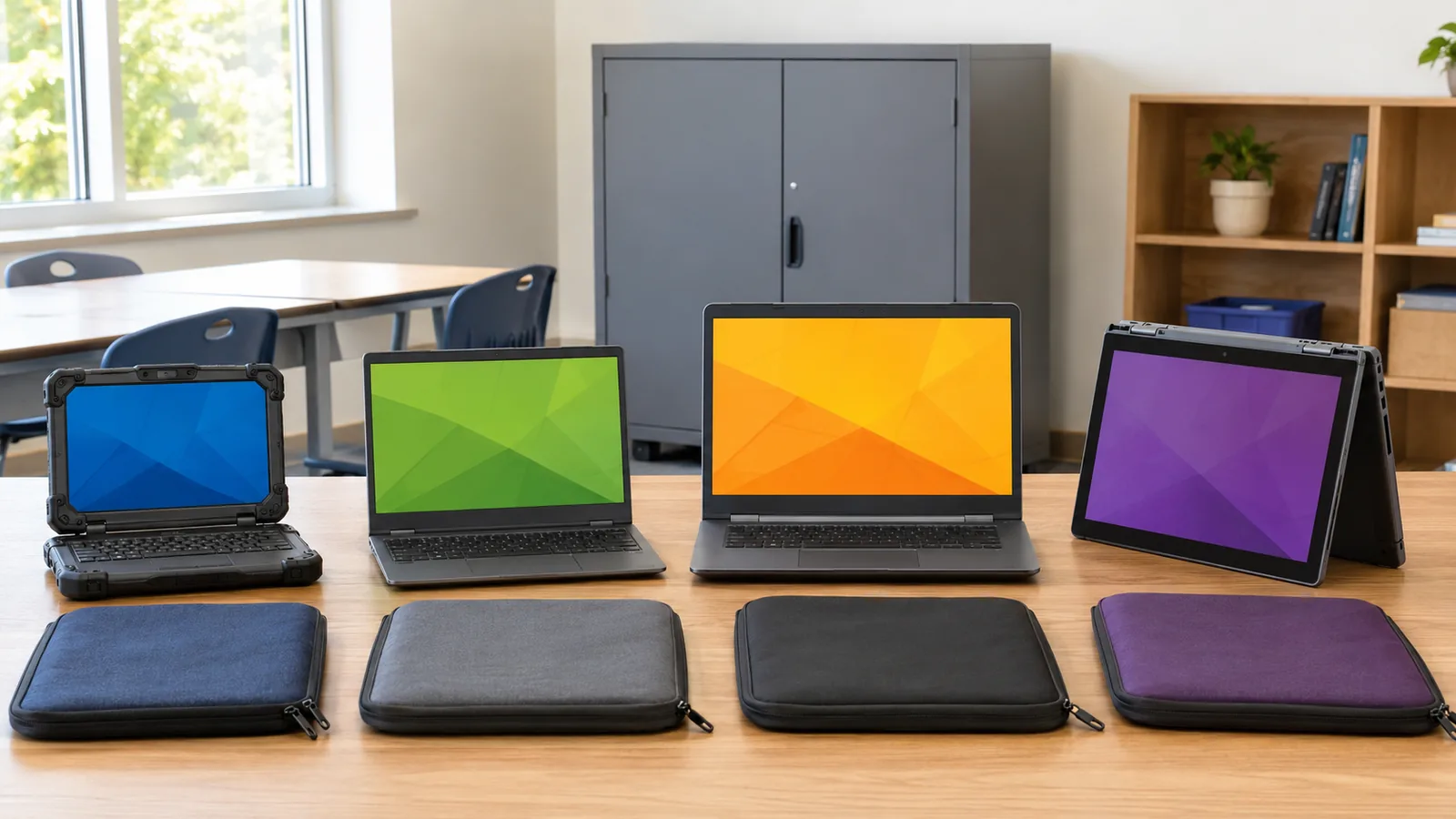

Choosing Chromebooks for schools and colleges is as much an IT-support decision as a hardware purchase. Durability, repairability, keyboard quality, battery life, management support, device-specific ChromeOS update dates and the performance needed for browser-based coursework all matter.
Quick Verdict
- Best for: schools and students whose core tools run well in ChromeOS or the browser.
- Focus on: Auto Update Expiration, durability, battery, repairability, keyboard, display, RAM/storage and management features.
- Watch for: do not buy a Chromebook from price alone without checking its exact model's remaining automatic-update window.
Table of contents
What to Know in 2026
Google says ChromeOS devices receive 10 years of automatic updates, but the support date is device-specific. Schools and buyers should check the exact model's update schedule before purchase. Official source.

Introduction
However, not all Chromebooks are equal. Battery life, build quality, display brightness, processor power and price can vary greatly. Selecting the right model ensures your device lasts through lectures, group projects and years of use. In this guide you’ll learn:
- Why Chromebooks are ideal for schools and colleges, including benefits and market data.
- Step‑by‑step criteria for choosing a Chromebook, from CPU and RAM to display and battery life.
- Detailed reviews of the top Chromebooks in 2026, including pros, cons, real‑world examples and authoritative citations.
- Practical tips for using and maintaining Chromebooks in educational settings.
- Frequently asked questions about Chromebooks and education.
Whether you’re a student, parent or educator, this 2026 buying guide will help you find the perfect Chromebook for school or college.
Why Choose a Chromebook for Education?
Affordable and Easy to Deploy
Chromebooks offer excellent value. Hardware prices start under USD 200, and the ChromeOS ecosystem is built around free or low‑cost web apps like Google Workspace, making them budget‑friendly for individuals and institutions. Most U.S. districts finance Chromebooks using local and state funding rather than federal grants. Buying multiple units is easier because ChromeOS devices can be centrally managed; IT administrators simply enroll a device, and students log in with their Google account to access apps and cloud storage. A Principled Technologies report comparing 12 Chromebooks noted that Dell models were easy to deploy, requiring only a few steps to get students up and runningprincipledtechnologies.com.
Durability and Long Support Lifecycle
Modern Chromebooks are rugged. Devices such as the Dell Chromebook 3110 have rubberized edges and spill‑resistant keyboards. Many Chromebooks are MIL‑STD‑810H tested, meaning they’ve survived shocks, drops, humidity and temperature cycles. ChromeOS devices now receive automatic security updates for 10 years, and the average lifespan of a Chromebook is 7.6 years. Long update support protects students’ data and reduces e‑waste.
Battery Life and Portability
Battery life is critical for students who need to attend multiple classes or work in study groups. Many Chromebooks offer 8–12 hours of runtime, and some 2026 models stretch far beyond. For example, Lenovo’s Chromebook Plus 14 with the MediaTek Kompanio Ultra processor is advertised to deliver up to 17 hours of battery lifechromeunboxed.com. Lighter devices typically weigh 2.5–3.5 lbs (1.1–1.6 kg), making them easy to carry around campus or between classrooms.
Secure and Cloud‑Centric
ChromeOS runs each application in its own sandbox, blocking malware and phishing threats. Google’s built‑in virus protection means no third‑party antivirus is required. Files are stored in Google Drive or other cloud services, so they’re accessible from any device and automatically synced. While offline functionality exists, Chromebooks are designed for a reliable internet connection, which is increasingly accessible across campuses and urban regions.
Widespread Adoption and Market Growth
The ChromeOS ecosystem continues to expand. Market analysts estimate that 22.11 million Chromebooks were shipped in 2025, and shipments are forecast to rise to 27.56 million units by 2031. Education remains the dominant segment, accounting for 57.7 % of Chromebook market share, but corporate deployments are projected to grow fastest at 7.75 % CAGRmordorintelligence.com. These numbers underscore that Chromebooks are a sound investment with robust support and a large user community.
Tip: For a deeper look at study gadgets guide on Top Study Gadgets for Students at Notes for SHS. It complements this article with accessories like external monitors, mice and noise‑cancelling headphones.
How to Choose the Right Chromebook: Step‑by‑Step Guide
Selecting a Chromebook requires balancing performance, portability and price. Follow these steps to narrow your choices:
- Define your use case. Are you mainly browsing the web and writing essays, or do you need to run Linux tools, coding IDEs and offline apps? Students in IT or engineering may require more RAM and a faster CPU than those in liberal arts.
- Choose a processor. Chromebooks use Intel (Core i3, i5, i7), AMD, or ARM chips (MediaTek Kompanio). Intel processors offer strong performance for multitasking, while ARM chips prioritize battery life and quiet, fanless operation. For example, the Kompanio Ultra in Lenovo’s Chromebook Plus 14 combines performance with exceptional battery life.
- Check memory (RAM). Aim for 8 GB for smooth multitasking. Budget models often include 4 GB (adequate for basic tasks), while premium Chromebooks offer 16 GB for demanding workloads or long‑term longevity. Remember that RAM is usually soldered and not upgradeable.
- Select storage. Most Chromebooks use fast eMMC or NVMe SSDs. 64 GB to 128 GB is typical, but photographers or coders might prefer 256 GB. Consider models with microSD slots for expansion, like the HP x360 14c.
- Look at display quality. FHD (1920×1080) resolution is common; premium devices offer OLED or IPS panels with wide color gamuts. Check brightness: 250 nits is fine for indoors, but brighter screens (300 nits or more) help when working outside or under fluorescent lights. For example, the Acer Vero 514’s 300 nits display provides good color and viewing angles.
- Evaluate battery life. Seek at least 8 hours of runtime. Compare reviews: the Acer Spin 714 provides over 10 hours of light use, while the Lenovo Flex 5i manages around 8 hours under normal workloads.
- Consider keyboard and build quality. A comfortable keyboard and responsive trackpad are essential for long writing sessions. Look for durable materials like aluminum or reinforced plastic, spill‑resistant designs and MIL‑STD certification for drop resistance. We highlight models with such features below.
- Check port selection and extras. USB‑A and USB‑C ports, HDMI and headphone jacks ensure compatibility with peripherals and projectors. Some Chromebooks include USI stylus support, fingerprint readers or privacy shutters for webcams. Decide which features you need.
By following these steps, you can prioritize features that matter most and avoid overspending on unnecessary specifications. Now let’s explore the top Chromebooks for students in 2026.
Top Chromebooks for Schools and Colleges in 2026
Asus Chromebook Plus CX34 – Best Overall

Why it stands out: PCWorld calls the Asus Chromebook Plus CX34 the best overall Chromebook for 2026 thanks to its fast Intel Core i5 processor, solid keyboard and wide array of portspcworld.com. It’s powerful enough for multitasking, streaming and light photo editing, yet competitively priced.
Key specifications
Feature | Details |
Processor | Intel Core i5 (13th‑gen) providing smooth performance for browsing, document editing and moderate multitasking |
Memory & Storage | 8 GB RAM and 128 GB or 256 GB SSD (varies by configuration). |
Display | 14‑inch Full HD (1920×1080) IPS panel, 16:9 aspect ratio. |
Battery life | Tested at around 13 hours in PCWorld’s battery benchmark, though real‑world use lands around 7–8 hours. |
Ports | Multiple USB‑C and USB‑A ports, HDMI, headphone jack. |
Extras | Comfortable keyboard and responsive touchpad; lacks keyboard backlighting and uses a 16:9 aspect ratio which may feel cramped on tall web pages. |
Pros:
- Zippy performance for school tasks and light creative work.
- Wide port selection (USB‑C, USB‑A, HDMI) enabling easy connection to monitors and peripherals.
- Good keyboard and trackpad for typing essays and coding projects.
Cons:
- Battery life is average; PCWorld notes you’ll likely get 7–8 hours in real‑world use.
- 16:9 display may feel cramped for reading long documents.
Best for: Students who need a robust, mainstream Chromebook with reliable performance, plenty of ports and a comfortable typing experience. It’s ideal for SHS students working on research papers, web projects or simple coding assignments.
Asus Chromebook CX15 – Best Budget Choice
Why it stands out: If you’re on a tight budget but still need a large screen, the Asus Chromebook CX15 delivers. PCWorld recommends it as the best budget pick because of its .
Key specifications
Feature | Details |
Processor | Intel Celeron dual‑core (basic) |
Memory & Storage | 4 GB RAM, 64 GB eMMC storage |
Display | 15.6‑inch Full HD (1920×1080) panel with anti‑glare |
Battery life | Around 10 hours of light use |
Ports | USB‑C, USB‑A, microSD slot, headphone jack |
Extras | Spacious keyboard and decent speakers for music and video |
Pros:
- Large display and comfortable keyboard make essay writing and spreadsheets easier.
- Very affordable—perfect for families or schools needing to buy dozens of devices.
- Roomy trackpad and loud speakers enhance multimedia consumption.
Cons:
- Slow dual‑core CPU and just 4 GB RAM limit multitasking.
- Short battery life compared with more expensive Chromebooks; real‑world estimates hover around 8–10 hours.
Best for: Budget‑conscious students who primarily browse the web, write assignments and watch videos. It’s ideal for SHS students taking notes and completing assignments without heavy multitasking.
Lenovo Chromebook Plus 14 – Best for Battery Life
Why it stands out: Lenovo’s Chromebook Plus 14 pairs a MediaTek Kompanio Ultra processor with an OLED display, promising exceptional battery life and performance. Chrome Unboxed notes that the device breaks the traditional trade‑off between power and endurance, boasting “up to 17 hours of battery life”, which is .
Key specifications
Feature | Details |
Processor | MediaTek Kompanio Ultra (ARM) |
Memory & Storage | 8 GB RAM, 128 GB SSD |
Display | 14‑inch OLED display with vivid colors |
Battery life | Advertised up to 17 hours, thanks to the power‑efficient ARM processor |
Ports | USB‑C (two), USB‑A, HDMI, headphone jack |
Extras | Dolby Atmos sound, AI‑powered camera features, and fast charging |
Pros:
- Outstanding battery life—ideal for students who need all‑day power without carrying a charger.
- Bright OLED display with deep blacks and vibrant colors, making videos and presentations pop.
- ARM processor with AI capabilities enhances camera features and on‑device editing.
Cons:
- Function keys can be hard to read, and some users may miss a numeric keypad.
Best for: Students who prioritize battery life above all else and want a stunning OLED screen for streaming and content creation. Suitable for remote learners and those with long school days.
Acer Chromebook Plus Spin 714 – Best Convertible for Power Users
Why it stands out: The Acer Chromebook Plus Spin 714 is a 2‑in‑1 convertible that packs serious power. RTINGS describes it as great for general productivity, with Intel’s Core Ultra 5 or 7 processors, up to 16 GB RAM and a 14‑inch FHD+ IPS display with full sRGB coverage. The review praises its all‑day battery life (over 10 hours) and comfortable keyboardrtings.com.
Key specifications
Feature | Details |
Processor | Intel Core Ultra 5 or 7 (Meteor Lake) |
Memory & Storage | Up to 16 GB RAM and 512 GB storage |
Display | 14‑inch FHD+ (1920×1200) IPS touch display, full sRGB coverage |
Battery life | Over 10 hours of light use according to RTINGS |
Ports | Two USB‑C with Thunderbolt 4, one USB‑A, HDMI 2.0, headphone jack |
Extras | Backlit keyboard, 1440p webcam, Wi‑Fi 6E, convertible 360° hinge |
Pros:
- Powerful performance for multitasking, coding, video editing and Linux usage.
- All‑day battery life, even with demanding tasks.
- Excellent keyboard and webcam.
Cons:
- Display reflects light; poor reflection handling makes it less suitable outdoors.
- Microphone quality is subpar.
- Integrated graphics only, so not ideal for gaming or high‑end GPU work.
Best for: College students studying computer science, engineering or media studies who need a versatile laptop that can double as a tablet. Its 16 GB RAM option supports running multiple apps and even Linux tools.
Acer Chromebook Vero 514 – Best Sustainable Choice
Why it stands out: The Acer Chromebook Vero 514 appeals to eco‑conscious students. Its chassis uses 30 % post‑consumer recycled plastic and 50 % recycled keycaps and trackpad, yet it offers robust build quality. The review notes that the recycled plastic doesn’t compromise rigidity and even resists fingerprintsaboutchromebooks.com.
Key specifications
Feature | Details |
Processor | 12th‑gen Intel Core i5‑1235U (10 cores) |
Memory & Storage | 8 GB LPDDR4 RAM, 256 GB NVMe SSD |
Display | 14‑inch 1080p IPS non‑touch display, 16:9 aspect ratio, 300 nits brightness |
Battery life | Typical runtime of 7–8 hours; fast charging brings the battery from 0 % to 50 % in 30 minutes |
Ports | Two USB‑C 3.2, one USB‑A, HDMI, headphone jack |
Extras | 1080p flare‑reducing webcam, backlit keyboard, recycled materials throughout |
Pros:
- Eco‑friendly design using recycled plastics.
- Solid build quality and responsive trackpad despite sustainable materials.
- Good performance from the 12th‑gen Intel processor and 8 GB RAM.
Cons:
- No touchscreen or microSD slot, which may limit versatility.
- Speakers and display brightness are average; speakers sound thin and display peaks at 300 nits.
Best for: Students who care about environmental impact and want a solid performer. Great for universities promoting sustainability initiatives.
HP Chromebook x360 14c – Best 2‑in‑1 for Versatility
Why it stands out: HP’s Chromebook x360 14c is a premium 2‑in‑1 with 11th‑gen Intel Core i3 power and a stylish aluminum chassis. About Chromebooks’ first‑impressions review highlights its premium build, comfortable keyboard, responsive trackpad and ample port selection, plus a USI stylus and fingerprint sensor for securityaboutchromebooks.com.
Key specifications
Feature | Details |
Processor | Intel Core i3‑1125G4 (quad‑core, eight threads) |
Memory & Storage | 8 GB DDR4 RAM, 128 GB NVMe SSD; microSD card slot for expansion |
Display | 14‑inch 1080p touch display (250 nits brightness) |
Battery life | Claimed 10.75 hours; reviewer expects 8–9 hours of typical use |
Ports | USB‑C on each side, USB‑A, microSD, headphone jack |
Extras | Backlit keyboard, excellent trackpad, fingerprint sensor, webcam privacy switch |
Pros:
- Premium build quality and aluminum frame.
- Comfortable keyboard and responsive trackpad.
- Versatile 2‑in‑1 form factor with stylus support and fingerprint sensor.
Cons:
- Display brightness only 250 nits, limiting outdoor visibility.
- Battery life is decent but not exceptional at around 8–9 hours.
Best for: Students who want a flexible laptop/tablet combination for note‑taking, drawing or presentations. It’s ideal for design, art or engineering courses that benefit from stylus input.
Dell Chromebook 3110 – Most Durable for Younger Students
Key specifications
Feature | Details |
Processor | Intel Celeron N4500 |
Memory & Storage | Up to 4 GB RAM, 32 GB eMMC storage |
Display | 11.6‑inch 16:10 FHD+ display, providing 7 % more vertical space than 16:9 panels |
Battery life | Up to 12 hours (according to Dell’s specifications) |
Connectivity | Wi‑Fi 6 and optional LTE |
Durability | Passed 10,000 hinge cycles test; easily replaceable battery; spill‑resistant keyboard |
Pros:
- Durable design for rough classroom environments.
- Easy deployment and battery replacement reduces IT burden.
- LTE option ensures connectivity for remote or rural students.
Cons:
- Limited performance with only a Celeron processor and up to 4 GB RAM.
- Basic display and small storage may feel restrictive for older students.
Best for: Elementary and junior high schools seeking rugged devices. Also ideal for fieldwork or laboratories where spills and drops are likely. For SHS students, the Latitude 5430 or other Dell models may offer more power.
Lenovo IdeaPad Flex 5i – Best Midrange 2‑in‑1
Why it stands out: The Lenovo Flex 5i Chromebook Plus balances price and performance. Techaeris’ review scores it 8.8/10 overall and praises its modern design, excellent port selection, great keyboard and touchpadtechaeris.com. It features a 2‑in‑1 design for tablet use and decent battery life.
Key specifications
Feature | Details |
Processor | Intel Core i5 (or i3) with 256 GB SSD in the Costco SKU |
Memory & Storage | 8 GB RAM, 128 GB or 256 GB storage |
Display | 14‑inch IPS touch display (brightness could be higher) |
Battery life | Reviewer obtained almost 8 hours of use including web browsing, documents, email, music and video streaming |
Ports | Abundant: USB‑C, USB‑A, HDMI, headphone jack |
Extras | Backlit keyboard, responsive trackpad, decent webcam and speakers |
Pros:
- Good performance and value, especially the Costco configuration with an Intel i5 and NVMe SSD.
- Flexible 2‑in‑1 design for note‑taking and content consumption.
- Excellent port selection compared to many Chromebooks.
Cons:
- Battery life could be better; eight hours is decent but not top tier.
- Display brightness and speakers are just average.
Best for: Students who want a mid‑priced Chromebook with 2‑in‑1 versatility and better performance than entry‑level devices. Great for college presentations and flexible study setups.
Chromebooks vs. Traditional Laptops
While Chromebooks excel in affordability and simplicity, they aren’t for everyone. Here are key differences to consider:
Factor | Chromebooks | Windows/Mac laptops |
Operating system | Runs ChromeOS, focused on web apps and cloud services. Limited compatibility with some Windows or Mac software. | Full Windows or macOS supports a vast range of desktop software. |
Security | Automatic, seamless updates and sandboxed environment; built‑in virus protection. | Requires manual updates and third‑party antivirus. |
Performance | Ideal for web‑centric tasks; high‑end models can handle Linux apps and light creative work. | More powerful CPUs and GPUs enable intensive software, gaming and video editing. |
Battery life | Many Chromebooks deliver 8–10 hours or more; ARM models like the Lenovo Plus 14 can reach 17 hours. | Varies widely; some ultrabooks exceed 10 hours, while gaming laptops may last only a few hours. |
Price | Generally cheaper, starting under USD 200. | Wide price range; high‑end models cost over USD 1,000. |
Offline use | Limited offline capability; require internet for full functionality. | Fully functional offline. |
Note: The Acer Spin 714 review highlights that Chromebooks are not designed for gaming; many titles aren’t compatible and integrated graphics cannot handle demanding games. Consider a Windows laptop if you need high‑performance computing or gaming.
Practical Tips for Students and Schools Using Chromebooks
Chromebooks thrive when paired with good habits and tools. Here are tips to get the most from your device:
- Leverage cloud productivity suites. Google Workspace (Docs, Sheets, Slides) and Microsoft’s web apps run smoothly on Chromebooks. For offline editing, enable offline mode in Google Drive.
- Use Progressive Web Apps (PWAs). Install web services like Spotify, Slack or Zoom as PWAs to run them like desktop apps.
- Enable Linux or Android apps for advanced tasks. Developers can enable Linux (Crostini) to run IDEs like VS Code or MySQL; designers can install Android apps such as Adobe Express or Autodesk SketchBook.
- Manage battery health. Avoid leaving the device plugged in constantly; use sleep mode rather than shutting down between classes. Many Chromebooks support fast charging, restoring 50 % battery in 30 minutes.
- Protect your device physically. Use protective sleeves, invest in a padded backpack and avoid eating over the keyboard. For younger students, choose rugged models like the Dell 3110 with spill‑resistant features.
- Update regularly. ChromeOS updates install automatically but require restarts. Encourage students to reboot weekly for security patches.
- Explore accessibility tools. ChromeOS includes screen readers, dictation, high‑contrast mode and reading mode to support learners with disabilities.
Conclusion
Chromebooks have cemented their place in education by delivering an unbeatable combination of affordability, security and simplicity. Market data show they dominate K–12 classrooms and are rapidly gaining traction in colleges. But choosing the right Chromebook requires careful consideration of processor power, memory, storage, display quality, battery life and durability. Models like the Asus CX34 and Acer Spin 714 provide robust performance for more demanding students, while budget‑friendly options like the Asus CX15 cover basic needs without breaking the bank. Sustainable designs such as the Acer Vero 514 appeal to eco‑conscious learners, and rugged devices like the Dell 3110 ensure durability in younger classrooms.
By using the step‑by‑step guide above and examining the pros and cons of each model, you can select a Chromebook that fits your educational requirements and budget. With long update support and a growing ecosystem, your investment will continue to pay dividends throughout your academic journey.
Frequently Asked Questions (FAQ)
What is the best Chromebook for college students in 2026?
For most college students, the Acer Chromebook Plus Spin 714 offers the best balance of performance, battery life, and versatility. With up to 16GB RAM, Thunderbolt 4 ports, and 10+ hours of battery life, it can handle multitasking, coding, and creative tasks—plus it converts into a tablet for note-taking.
Which Chromebook has the longest battery life?
The Lenovo Chromebook Plus 14 stands out with an advertised 17 hours of battery life, thanks to its energy-efficient MediaTek Kompanio Ultra processor. It’s ideal for students who want all-day power without carrying a charger.
Are Chromebooks good for programming or engineering students?
Yes—if you choose a model with enough RAM and a strong processor. Chromebooks like the Acer Spin 714 and Asus CX34 with Intel Core chips and up to 16GB RAM can run Linux tools, IDEs, and compile code. However, some specialized engineering apps that require Windows or macOS won’t run on ChromeOS.
How much RAM do I need in a Chromebook?
For basic tasks (web browsing, documents), 4GB can work. For multitasking, coding, and Android/Linux apps, 8GB is the better minimum. Heavy users and students who want more longevity should consider 16GB for future-proofing.
Can Chromebooks run Microsoft Office?
Yes. You can use Office on the web via , install Microsoft Office Android apps (if supported), or manage files through the Google Play Store ecosystem. Offline editing is possible if you enable offline mode in Google Drive and supported apps.
Do Chromebooks work offline?
Yes—within limits. ChromeOS is cloud-first, but many tools have offline modes. Google Docs, Sheets, and Gmail can work offline after you enable the feature. You can also install Android or Linux apps for offline work. You’ll still need internet to sync updates once you reconnect.
Are Chromebooks secure?
Yes. ChromeOS uses verified boot, sandboxing, and automatic updates to reduce malware risk. Devices are encrypted by default, which is one reason schools and colleges trust Chromebooks for student use.
How long do Chromebooks last?
Modern Chromebooks now receive 10 years of automatic updates, and the average device lifespan is often cited around 7.6 years. Choosing a durable model (and one with replaceable parts, if possible) can extend usable life.
Should I choose ARM or Intel Chromebooks?
ARM (e.g., MediaTek Kompanio) usually delivers longer battery life and cooler, quieter operation—great for light tasks. Intel typically offers stronger performance for multitasking, programming, and Linux apps. Choose based on your workload and the apps you need.
By thoughtfully evaluating your options and selecting the right Chromebook, you’ll empower yourself or your students to thrive in the digital classroom. For more study and technology guides for SHS, visit Notes for SHS.
Bottom Line
For education fleets and student purchases, long software support and easy maintenance usually matter more than small benchmark differences. Check Google's model-specific update schedule before committing to any Chromebook.