Confirmed US availability Dell ordering live 27–28 August 2026 · Research checked 28 August 2026
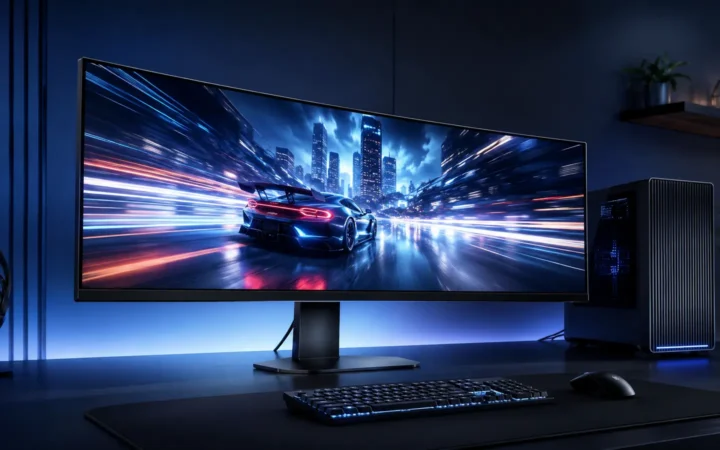
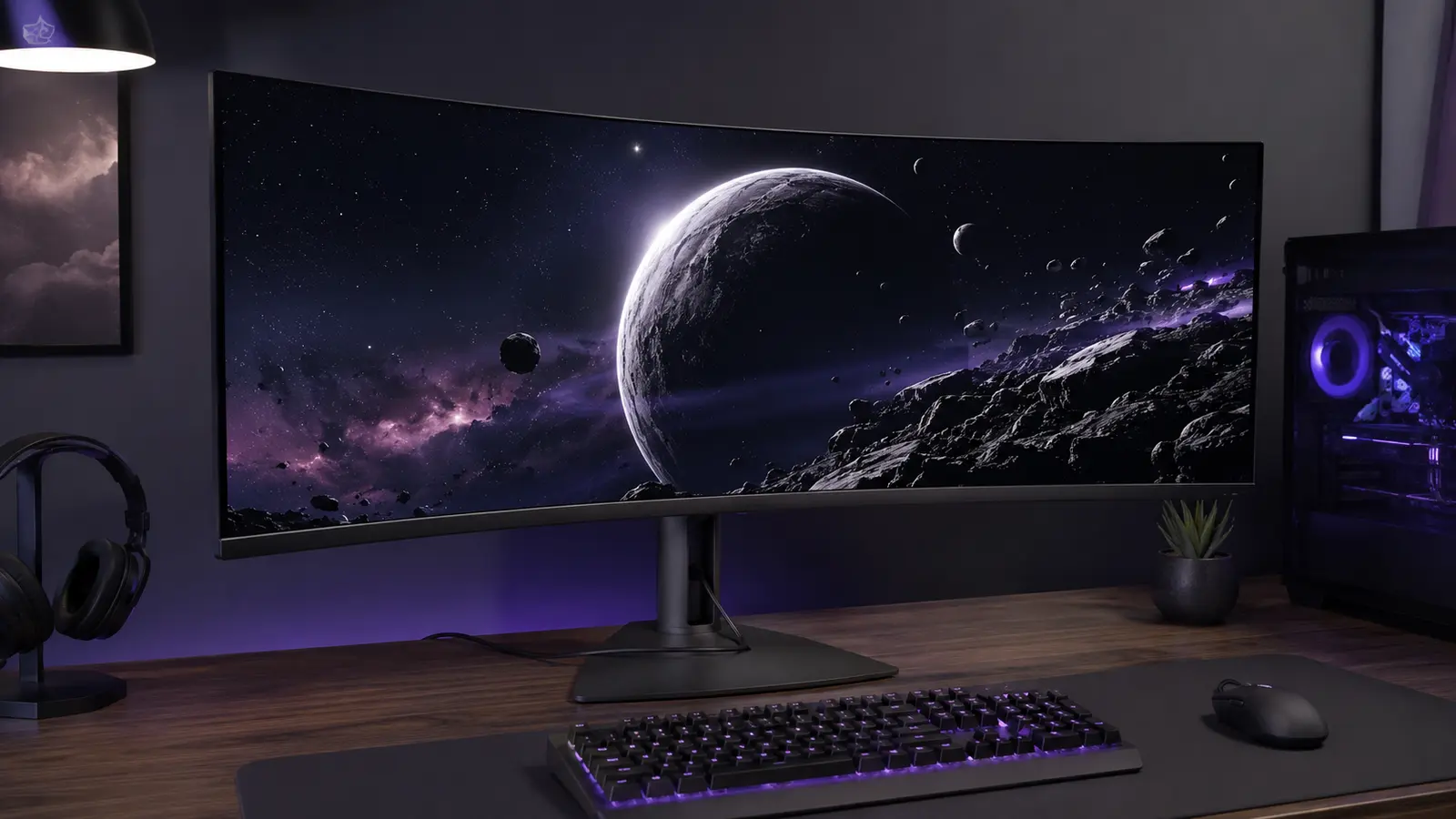
Alienware’s AW3926QW combines a 38.9-inch 5120×2160 OLED panel at 165Hz with a 2560×1080 330Hz mode, DisplayPort 2.1, HDMI 2.1, a KVM and 90W USB-C power. At $1,099.99 it is unusually aggressive for a 5K-class ultrawide, but native-resolution gaming demands a powerful GPU and the speed mode sacrifices substantial sharpness.
AW3926QW is best for someone who wants one monitor for immersive gaming, creative work and a USB-C laptop. The $1,099.99 price is strong on paper. Buy after confirming desk depth, GPU performance and text comfort; choose a conventional 32-inch 4K display if broad game compatibility or pixel density matters more than ultrawide immersion.
Alienware AW3926QW price and availability
Dell’s US store lists the AW3926QW at $1,099.99 with ordering available. It is a new US release, so there is no previous established US selling price and no valid percentage reduction to calculate. Financing offers do not lower total cost unless their terms do so explicitly.
The monitor carries Dell’s three-year Advanced Exchange service and OLED burn-in coverage. Service level, replacement condition and regional terms should be read in full. Buyers outside the US should use the local Dell page for price, tax, warranty and delivery rather than importing a large fragile display.
| Specification | Confirmed detail | Buyer impact |
|---|---|---|
| Panel size | 38.9-inch OLED ultrawide | Immersive but requires desk width and depth |
| Native mode | 5120×2160 at 165Hz | Sharp, highly demanding on GPU |
| Speed mode | 2560×1080 at 330Hz | Higher refresh, much lower detail |
| Response claim | 0.03ms GtG in Extreme mode | Needs independent overshoot and latency tests |
| USB-C | Display input and up to 90W power | Single-cable laptop use |
| Warranty | Three years with burn-in coverage | Important protection for OLED ownership |
5K ultrawide and 330Hz mode explained
The native 5120×2160 resolution contains about 11.06 million pixels—approximately 33% more than 3840×2160 4K. The extra horizontal space improves timelines, side-by-side windows and supported ultrawide games. It also asks the GPU to shade more pixels every frame.
The 2560×1080 mode contains one quarter as many pixels as native resolution and doubles maximum refresh to 330Hz. That can help fast competitive games, but scaling a 1080-high image across a 38.9-inch screen reduces fine detail and text sharpness. Use it as a specialist mode, not the monitor’s default for desktop work.
Native 5K2K mode
Best for creation, productivity, strategy games and visually rich titles. Use upscaling or reduced settings when native performance is too low.
330Hz mode
Best for competitive games where frame rate and response outweigh resolution. Expect a visibly softer image.
Dell describes RGB-stripe tandem OLED technology. An RGB stripe can improve text rendering relative to unusual subpixel layouts, while tandem construction aims to increase efficiency or brightness. Final text clarity, brightness and uniformity still require close-up and instrumented review.
What GPU do you need?
No single GPU recommendation covers every game. Native 5120×2160 at 165fps is beyond many systems in demanding ray-traced titles. A powerful modern GPU, upscaling and frame generation can help, but generated frames do not reduce base input latency in the same way as truly rendered frames.
Less demanding esports and older games can run much faster. Competitive users can select the 2560×1080 mode, while creators can use native resolution at lower refresh without issue. Check game support for the aspect ratio; some titles display black bars or move interface elements awkwardly.
Performance planning checklist
- Review benchmarks at 5120×2160 or a similarly heavy pixel count.
- Confirm the GPU port and cable support the required mode.
- Use variable refresh rate when frame output fluctuates.
- Check whether anti-cheat or game settings support frame generation.
- Plan for CPU limits in the 330Hz mode.
- Keep enough desk distance to view the ultrawide edges comfortably.
DisplayPort 2.1, HDMI 2.1, USB-C and KVM
Dell lists two HDMI 2.1 inputs capable of the native resolution and refresh using supported features, one DisplayPort 2.1, USB-C upstream with DisplayPort Alt Mode and up to 90W power, USB data ports and an integrated KVM workflow. The included cables cover HDMI, DisplayPort and USB connections.
A KVM lets one keyboard and mouse serve two connected computers. That is valuable for a gaming desktop plus work laptop. Ninety watts is sufficient for many productivity notebooks, but high-performance mobile workstations may charge slowly or reduce performance under full load.
Consoles generally target 16:9 output rather than the monitor’s full ultrawide canvas. They can still work, but may display side bars. Buy primarily for PC if edge-to-edge ultrawide gaming is the goal.
Burn-in, static content and warranty
OLED delivers excellent blacks and rapid pixel response because each pixel emits its own light. Static taskbars, editing panels, scoreboards and game HUDs can cause uneven wear over long periods. Use screen sleep, varied content and panel-maintenance features; avoid leaving bright static windows at maximum brightness all day.
The three-year burn-in coverage is a significant buying advantage, but it is not a reason to ignore care. Read the definition of burn-in, service method, replacement condition and exclusions. Advanced Exchange can reduce downtime, though availability and deposits may vary.
Alienware AW3926QW versus other premium monitors
Compared with a 32-inch 4K OLED, Alienware provides more horizontal workspace and immersion but takes more desk area and has less universal console fit. Compared with a 49-inch super-ultrawide, it is more compact and vertically generous. Against LG UltraGear ultrawides, final value depends on curve, panel, ports, calibration, warranty and live price.
For productivity-first use, also compare a high-quality IPS Black or mini-LED ultrawide. Those technologies avoid OLED burn-in anxiety and may be brighter across large white windows, though they cannot match per-pixel black levels and response.
Workspace setup and scaling
At 38.9 inches, viewing distance determines comfort. Place the center near eye level and far enough away that the edges do not require constant head turns. The stand footprint can consume keyboard space, so a properly rated monitor arm may improve positioning. Confirm VESA pattern and weight before ordering an arm.
Windows or macOS scaling affects usable workspace. Native resolution with 125–150% scaling can preserve sharp text while keeping controls readable; application behavior varies. Test the software you use, especially older creative tools, remote desktops and screen-sharing platforms.
Creator workflow and color management
Creators should select an accurate preset, profile the panel and use color-managed applications. Wide-gamut color can oversaturate unmanaged content. Check sRGB clamping, white-point controls, uniformity and whether HDR mode changes calibration behavior.
A 5120×2160 timeline offers generous horizontal room for video editing, but the panel is not a replacement for a reference monitor without measured accuracy and stable luminance. OLED’s deep black can make shadow work pleasant; near-black calibration remains important.
Gaming setup: native, upscaled or reduced mode?
Start at native resolution with variable refresh and adjust quality settings. If performance remains low, use a game’s high-quality upscaler before dropping the monitor to 2560×1080. Upscaling can preserve interface and edge detail better than feeding one-quarter native pixels.
Use 330Hz mode for titles that benefit and can produce very high frame rates. Save separate game profiles if Dell’s software supports them, and verify the monitor returns to native mode for desktop work. Avoid leaving a low-resolution competitive setting active for reading.
Laptop docking and KVM workflow
Connect the work laptop by USB-C for video, data and up to 90W charging, then connect the desktop through DisplayPort or HDMI plus USB upstream. Assign the keyboard and mouse to the KVM and test switching after sleep. Some corporate laptops restrict USB-C display features through policy or dock firmware.
If the laptop needs more than 90W, keep its charger connected or use a lower performance profile. Running two power sources is normally managed by the laptop, but follow the manufacturer’s guidance. Check webcam, audio interface and storage bandwidth when many USB devices share the hub.
First-week quality-control checklist
- Inspect for shipping damage and keep packaging.
- Check dead pixels and severe uniformity issues with normal content.
- Verify 5120×2160 165Hz and 2560×1080 330Hz on the intended input.
- Test VRR flicker in dark games and frame-rate menus.
- Listen for fan or electrical noise in a quiet room.
- Wake each connected computer repeatedly through the KVM.
- Read small text for an hour to assess subpixel comfort.
Total cost beyond $1,099.99
A stronger GPU, monitor arm, longer certified cable or colorimeter can add hundreds of dollars. Conversely, USB-C power and KVM may replace a dock and switch, offsetting part of the price. List what the monitor lets you remove from the desk.
Do not finance a display based on a monthly number without checking total interest. OLED prices tend to fall during promotions, so price protection can matter during the first weeks.
Who should buy the AW3926QW?
Buy if…
- You want 5K-class ultrawide workspace and gaming.
- You have a strong GPU or accept upscaling.
- USB-C power and KVM can replace a dock or extra peripherals.
- The three-year burn-in warranty meets your risk tolerance.
Choose another display if…
- You mostly play console games.
- You need bright static productivity use all day.
- Your GPU struggles above standard 4K.
- A shallow desk makes 39 inches uncomfortable.
At $1,099.99, the AW3926QW combines resolution, refresh, connectivity and warranty unusually well. The hidden cost is the system required to exploit it. If native 5K2K gaming is unrealistic for your PC, decide whether the softer 330Hz mode and productivity benefits still justify the purchase.
Questions buyers are asking
Is 5120×2160 the same as normal 4K?
No. It has the same 2160-pixel height but a wider 5120-pixel canvas, totaling about 33% more pixels than 3840×2160.
Can it run 330Hz at native resolution?
No. Dell lists 165Hz at 5120×2160 and 330Hz at the reduced 2560×1080 mode.
Can USB-C charge a gaming laptop?
It provides up to 90W. That suits many work laptops, but powerful gaming notebooks may require their original higher-wattage adapter.
Does the warranty cover burn-in?
Dell lists three-year coverage that includes OLED burn-in. Read the regional service terms and exclusions before purchase.
Sources and research method
Specifications, price, ports and warranty were checked on Dell US on 28 August 2026. Pixel-count percentages are direct calculations. Image quality and response claims await independent measurement.