
A productive home office is not defined by an expensive chair, a wall of screens or a perfectly styled background. It is a workspace that helps you begin quickly, stay comfortable, communicate clearly and finish the day without allowing cables, glare and notifications to control the room.
These modern home office ideas for 2026 are arranged by impact. Correct the physical setup first, improve light and sound next, and add connected technology only when it removes a repeated problem.
Research checked: August 27, 2026. This guide uses current occupational-safety and energy guidance but is not an individual ergonomic or medical assessment. Body dimensions, abilities, tasks and equipment vary.
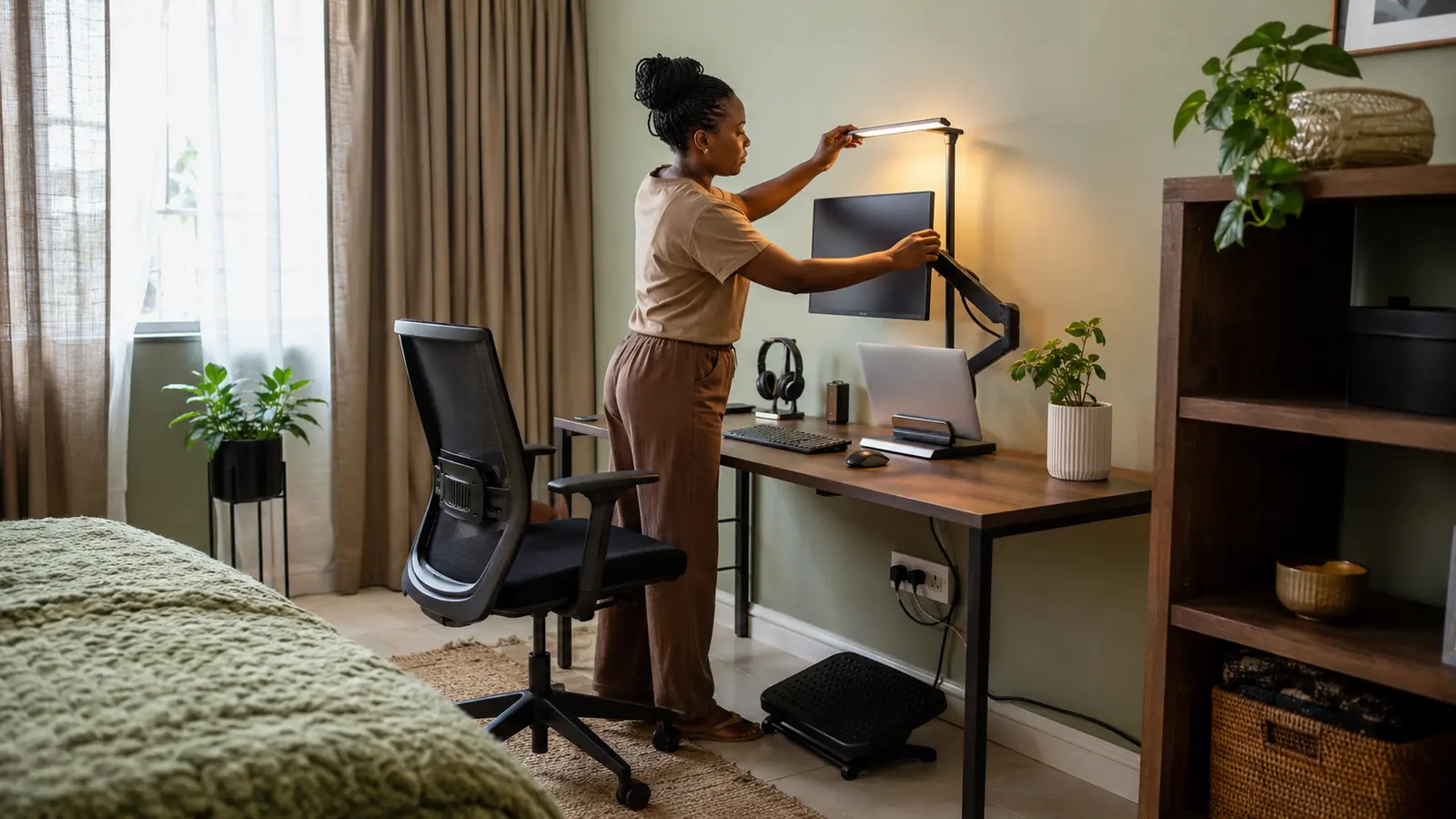
Table of contents
The best home-office upgrade order
For most people, the strongest sequence is: supportive adjustable chair → suitable work surface → screen at a comfortable position → separate keyboard and pointing device → controlled glare → clear audio → reliable internet → safe power and cable management. Add décor and automation after the workstation works well without them.
Plan around your work—not a social-media photograph
Begin by listing the activities that occupy most of your week: long-form typing, video meetings, design work, telephone calls, study, paper handling or occasional administration. A writer may value a quiet keyboard and deep work surface. A salesperson may gain more from dependable audio and a professional camera angle. A designer may need accurate display characteristics and local storage. Buying the same setup for every job wastes money.
| Work pattern | Prioritize first | Common unnecessary purchase |
|---|---|---|
| Writing, administration and study | Chair adjustment, keyboard position, task light and document space | A second display before the first one is positioned well |
| Frequent video meetings | Stable connection, microphone, face lighting and uncluttered background | An expensive camera paired with poor room audio |
| Creative or technical work | Suitable computer, color/size requirements, storage and backup | Decorative accessories that occupy working space |
| Shared or multipurpose room | Compact storage, quick reset routine, headphones and portable equipment | Permanent furniture that prevents the room serving another purpose |
Measure the available width, depth and socket locations before ordering anything. Note the direction of daylight and the route people use through the room. A desk that fits the wall but blocks a door, creates screen glare or leaves no leg clearance is not a successful fit.
Five ergonomic upgrades that improve the foundation
1Adjust the chair before replacing it
A good chair supports the back and allows the feet to rest on the floor or a stable footrest. Adjust seat height so the shoulders can remain relaxed while using the keyboard. If the chair has adjustable lumbar support, armrests or seat depth, change one setting at a time and work for several days before judging it. A costly chair that does not fit the user can be less comfortable than a modest one adjusted correctly.
2Give the keyboard and mouse a neutral working zone
Place both directly in front of the body and close enough that the elbows remain near the sides. The OSHA computer-workstation guidance recommends keeping wrists straight and in line with the forearms. A separate keyboard and mouse are especially valuable when a laptop is raised, because the built-in controls otherwise rise with the screen.
3Raise and center the main screen
Use the monitor’s stand, a stable riser or a correctly installed arm to bring the display to a comfortable height. Position the main screen in front of you rather than twisting repeatedly. OSHA notes that workstation arrangements must fit the individual and task; there is no single correct posture for everyone. Start with the screen roughly an arm’s length away, then adjust for display size, eyesight and text scaling instead of leaning forward.
4Add a footrest when the desk controls your chair height
Many fixed desks are too high for a shorter user to keep both relaxed shoulders and supported feet. Raise the chair to reach the keyboard comfortably, then use a stable footrest. It can be a purpose-built adjustable model or a firm, non-slip platform of appropriate height—not a rolling box or unstable stack of books.
5Build movement into the day
A sit-stand desk can add positional choice, but it does not make prolonged standing automatically healthy or productive. Change posture, take brief movement breaks and place frequently used items within comfortable reach. If a complete adjustable desk is outside the budget, calendar reminders, telephone calls taken standing and a clear route for short breaks can achieve much of the behavioral benefit.
Five ideas for better lighting, sound and concentration
6Place the screen across the window, not directly against it
A window behind the monitor can create a bright contrast; a window behind you can reflect on the screen. A position approximately perpendicular to the window is often easier to control. Use blinds or curtains to soften changing daylight while preserving useful natural light. OSHA’s workstation-environment guidance recommends arranging the office to minimize glare from windows and lamps.
7Use a focused task light instead of over-lighting the room
An adjustable lamp can illuminate documents and the keyboard without increasing every ceiling light. Place it so the hand does not cast a strong shadow across the working area and the bulb is not reflected in the display. For video calls, a soft light near and slightly above the camera is usually more flattering than a bright window or bare bulb behind the subject.
8Control echo before buying a premium microphone
Hard, empty rooms reflect speech. Curtains, a rug, fabric furniture and filled shelving can reduce obvious echo. Keep the microphone close enough for a clear voice and select the correct input in the meeting application. Test a recording before important calls; the laptop’s existing microphone may be adequate after the room and distance are improved.
9Create a calm, truthful video-call background
The background should not reveal private documents, family photographs, addresses or a doorway that creates constant movement. A clean wall, plant or organized shelf is enough. Avoid making the room so staged that returning it to that state becomes another daily task. Blur can help, but it does not replace removing sensitive information from view.
10Give every recurring object a parking place
Create a small tray or drawer for chargers, adapters, stationery and storage drives. Use vertical space for documents, but keep heavy objects securely supported. At the end of work, return only the items used that day. This short reset is more sustainable than a complicated organization system that requires constant sorting.
Ten technology upgrades worth considering
11Turn a laptop into a stable workstation
A laptop stand plus separate keyboard and mouse improves screen placement without removing portability. A compatible dock can connect power, display, network and accessories through one cable, but verify the exact laptop port, supported display resolution, charging wattage and operating-system compatibility. USB-C describes a connector shape; it does not guarantee every video or charging feature.
12Choose one useful monitor before adding a second
A larger external display can reduce window switching and make documents easier to read. Select size, resolution, panel characteristics and ports for the actual workload. Use operating-system scaling so text remains comfortable. Add a second monitor only when the workflow benefits and the desk can keep the primary display centered without forcing frequent neck rotation.
13Upgrade audio before video
People can tolerate an ordinary image more easily than unclear, echoing or interrupted speech. A wired headset is dependable and avoids battery management. Wireless models add mobility but require charging and may switch between devices unexpectedly. Look for a physical mute control and learn how the meeting platform indicates which microphone is active.
14Improve the camera angle with equipment you own
Raise the laptop or webcam near eye level and keep the lens stable. Clean it gently with an appropriate cloth. Face a controlled light source and avoid digital zoom when possible. A dedicated camera becomes useful when the built-in model has a poor field of view, unreliable exposure or insufficient connection options—not simply because it has a larger resolution number.
15Strengthen internet reliability
Place the router in an open, central position and test the office at the hours you actually work. Use Ethernet when stable low-latency performance is essential and wiring is practical. For difficult layouts, a correctly positioned mesh node may help, but adding nodes too close together can create unnecessary complexity. Keep router firmware current and secure the network using modern settings.
16Plan a backup connection for critical work
If mobile coverage and your plan allow tethering, learn the process before an outage. Keep important telephone numbers and offline copies of essential documents available. A backup connection is not permission to ignore data limits, battery drain or employer security rules. Test it briefly, then disable it when it is not needed.
17Protect power safely
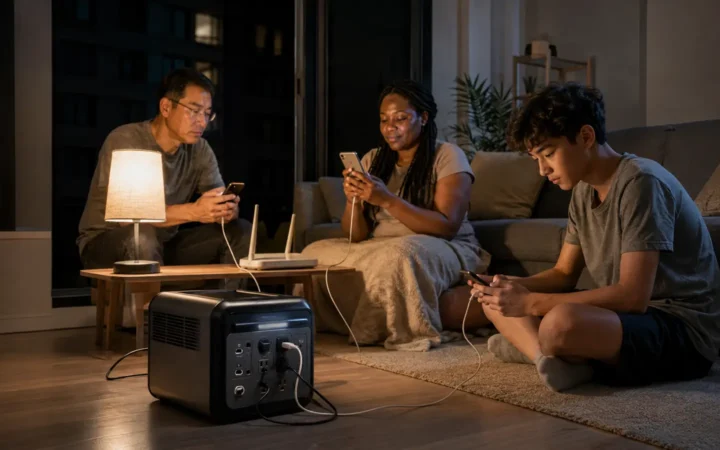
Use certified power strips, surge protection and uninterruptible power supplies that match local voltage, plug type and connected load. A UPS can provide time to save work and shut down equipment; it is not a generator. Never daisy-chain extension leads, cover adapters with fabric or continue using a hot, loose, cracked or discolored plug. Consult a qualified electrician for inadequate, damaged or ungrounded wiring.
18Manage cables for serviceability
Route power and data separately where practical, leave safe slack for a sit-stand surface and label both ends of removable cables. Secure a power brick so its weight does not pull on the connector. The goal is not to make every wire invisible; it is to prevent trips, strain, heat buildup and confusion when one component must be replaced.
19Automate a focus scene with a manual fallback
A physical button can turn on a task lamp, set a comfortable room condition and silence optional notifications. Keep the lamp and essential equipment controllable when Wi-Fi or the smart-home platform is unavailable. The FrediTech beginner automation guide explains how to choose a platform and build dependable routines.
20Use software settings before buying more hardware
Increase text size, use scheduled focus modes, reduce unnecessary startup applications, configure automatic backups and review notification permissions. Turn on suitable sleep settings for displays and accessories, but do not cut power to equipment that needs updates or remote access. A weekly digital reset—closing unused tabs, clearing the desktop and confirming backups—can be more valuable than another gadget.
Example upgrade plans for three budgets
| Plan | Start with | Add only if needed | Delay |
|---|---|---|---|
| Low-cost reset | Chair adjustment, stable laptop riser, separate keyboard/mouse, lamp and cable ties | Footrest, wired headset, curtain or rug | Decorative lighting and extra screens |
| Balanced daily office | Supportive chair, suitable desk, external monitor, dock, task light and headset | Monitor arm, Ethernet, webcam, certified surge protection | Premium accessories without a clear workflow benefit |
| Power-resilient professional setup | Everything in the balanced plan plus backup, local storage and measured power protection | UPS sized for essential devices, mobile backup internet and acoustic treatment | Large UPS loads or electrical work without professional assessment |
Prices change by country and availability, so compare the complete system cost rather than a single discounted item. Include adapters, delivery, installation, replacement batteries, software subscriptions and warranty support.
Set up a modern home office in seven steps
- Measure and photograph the empty area. Record width, depth, socket positions, door clearance and daylight direction.
- Place the desk for movement and glare control. Keep a clear route through the room and sufficient ventilation around electronics.
- Adjust the chair and work surface. Establish supported feet, relaxed shoulders and comfortable keyboard reach.
- Position the main display. Center it, adjust distance and use appropriate text scaling.
- Test light, audio and camera. Record a short meeting sample at the time of day you usually work.
- Secure power and connectivity. Remove damaged leads, avoid overloads, update the router and confirm backup procedures.
- Work for one week before expanding. Keep a short list of real friction points and purchase only for repeated needs.
Frequently asked questions
What is the most important home-office upgrade?
For a person who works seated for long periods, correct chair and keyboard adjustment is often the strongest foundation. If the existing chair can be adjusted to provide support and the feet can rest securely, a laptop stand with separate controls may be the next high-value change.
Is one large monitor better than two monitors?
Neither arrangement is universally better. One appropriately sized display reduces bezels and may be easier to center. Two can help workflows that need reference material beside the main task. Choose based on software, desk depth and how frequently you would rotate your head.
Should a home-office desk face a window?
Facing a bright window can create strong contrast, while placing the window behind you can cause reflections. A desk roughly perpendicular to the window is often easier to manage, but test the actual room through the day and use blinds or curtains when necessary.
Do I need a standing desk to have an ergonomic office?
No. A comfortable seated setup, regular movement and task variation can be effective. A sit-stand desk adds another position but still requires correct adjustment and does not remove the need for breaks.
How can I improve a home office in a bedroom?
Use compact equipment, closed storage and a five-minute reset routine. Headphones, a folding or shallow desk, removable cable management and a neutral call background help the room serve two purposes. Avoid blocking exits or placing hot electronics on bedding.
Research sources and methodology
This guide was checked against current official workstation and energy guidance. Recommendations were screened for adjustability, safety, interoperability, serviceability and practical value. Product examples are categories rather than hands-on rankings; availability and electrical requirements vary by region.