
Smart-home automation can look intimidating because product boxes talk about Matter, Thread, Zigbee, hubs, bridges and assistants before explaining what any of them will do for you. The good news is that a useful beginner system can be very small: one controller, one device, one trigger and one manual fallback.
This guide shows you how to set up smart home automation from the beginning, choose a platform, secure it, create reliable routines and expand without filling your phone with disconnected apps.
Research checked: August 27, 2026. Menus and platform support change over time; use the latest instructions for your exact device and software version.
Table of contents
The beginner plan in one minute
- Choose one repeated problem to solve.
- Select the main platform your household will use.
- Secure the router and accounts before adding devices.
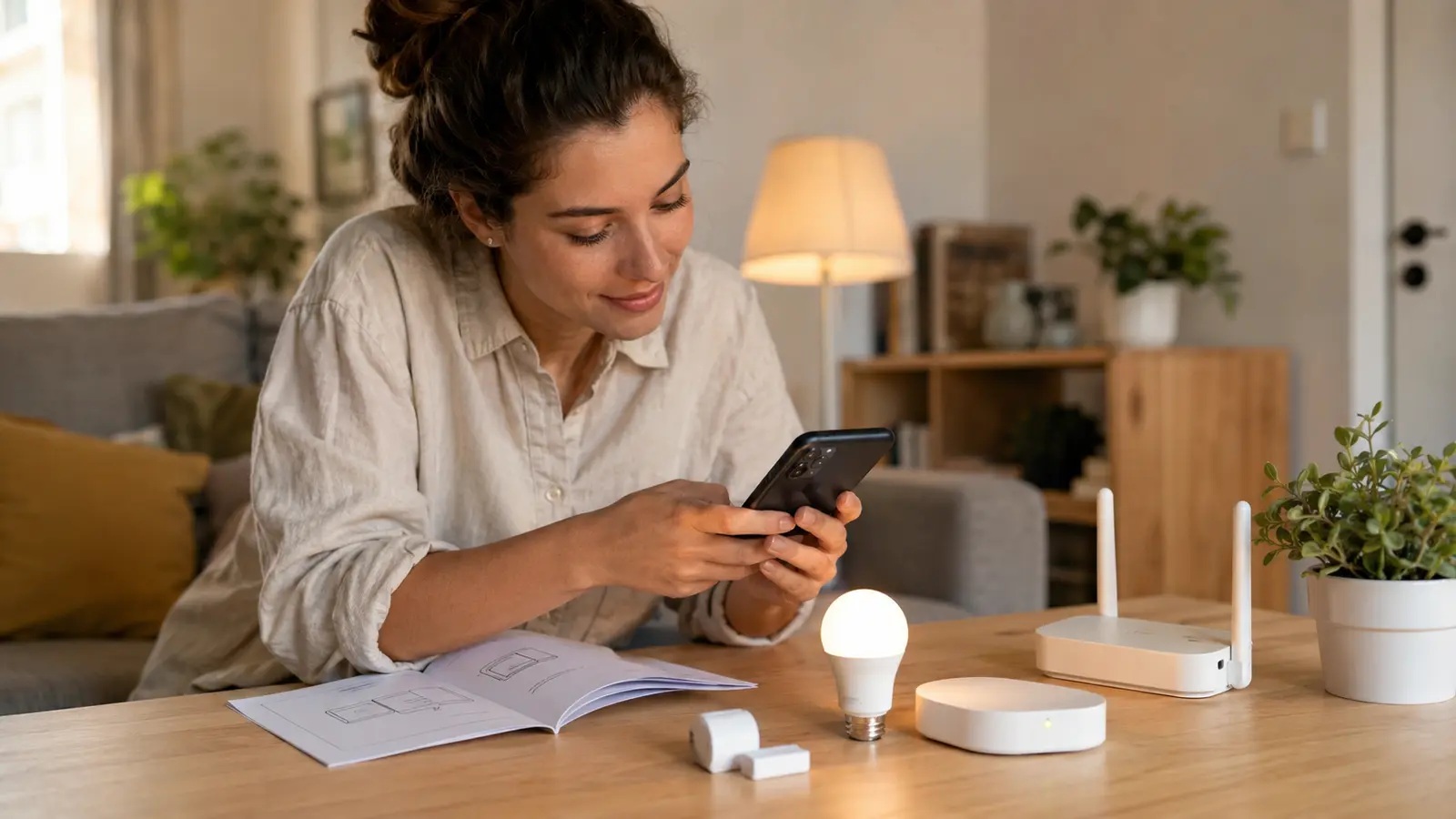
- Start with one compatible bulb, plug or sensor.
- Name it by room and purpose, then make one simple routine.
- Test manual control, local control and failure behavior.
- Expand only when the first setup is stable.
What smart-home automation actually means
Remote control and automation are related but different. Turning on a lamp from your phone is remote control. Making that lamp turn on when the entry sensor opens after sunset is automation.
Trigger
The event that starts a routine: time, sunrise, motion, a door opening, a temperature threshold or a button press.
Condition
An optional rule that must be true: someone is home, it is dark, the window is closed or the system is in Away mode.
Action
What the home does: turn on a light, change temperature, send an alert or start a compatible appliance function.
Fallback
The way a person takes control if the routine is wrong: a wall switch, button, key, thermostat screen or app override.
A good routine is easy to predict. If nobody in the household can explain why a light turned on, the automation needs simpler conditions or clearer naming.
Matter, Thread, Wi-Fi, Bluetooth and Zigbee explained
| Term | What it does | What beginners should know |
|---|---|---|
| Matter | A common application standard for supported device categories | Helps compatible products work across major ecosystems; advanced brand features can still differ. |
| Thread | A low-power IP-based mesh network | Matter-over-Thread devices need a compatible Thread border router, which may be built into a hub or speaker. |
| Wi-Fi | Connects devices directly to the home network | Easy for a few devices but can increase router load and cloud dependence. |
| Bluetooth | Short-range wireless connection | Often used for initial setup or direct control; remote access may need a hub. |
| Zigbee | A low-power mesh used by many established sensors and lights | Usually requires a compatible Zigbee hub or bridge. |
| Z-Wave | A sub-GHz mesh used by many locks, sensors and security systems | Requires a regional-frequency-compatible Z-Wave controller. |
The Connectivity Standards Alliance positions Matter as a way to improve interoperability. Matter can run over Wi-Fi, Ethernet or Thread depending on the product. Thread is not another phone app or a replacement for your internet router; it is a device network connected to the home network by a border router.
Amazon describes Thread as an IPv6 low-power mesh designed for security, reliability and scalability. Google lists a built-in Thread border router and Matter hub among Nest Wifi Pro’s functions. The important word is compatible: check the exact generation and model of any hub or speaker.
Step 1: Choose the platform your household will actually use
A platform gives you the main app, voice control, rooms, household access and routines. Matter can let a device join more than one supported ecosystem, but choosing a primary platform keeps everyday management simple.
| Platform | Best fit | Strength | Consideration |
|---|---|---|---|
| Amazon Alexa | Homes already using Echo products | Broad device support, routines and voice control | Review recording, purchase and privacy settings. |
| Google Home | Android, Nest and Google households | Simple app integration and growing automation tools | Some advanced functions may require brand apps or subscriptions. |
| Apple Home | Apple-device households | Strong integration across Apple devices and Matter support | Remote access and Thread products require a compatible home hub. |
| Samsung SmartThings | Mixed-device and Samsung homes | Wide device categories and flexible routines | Hub and feature requirements vary by device. |
| Home Assistant | Enthusiasts prioritizing local control | Deep automation and broad integrations | More setup, maintenance and troubleshooting responsibility. |
Ask every regular household member which app and voice assistant they are willing to use. If the answer is “none,” use physical buttons and automatic triggers as the main interface.
Steps 2–4: Plan the first room, devices and budget
Step 2: Choose one room and one outcome
A first project should be narrow: turn on the entrance light after sunset, receive an alert when water appears under the sink, or switch off a desk lamp at bedtime. Avoid beginning with a whole-house security or climate redesign, where one mistake affects too much.
Step 3: Draw a simple compatibility map
For every planned device, write down the platform, connection type, required hub, power source, physical fit and ongoing cost. The diagram can be as simple as:
If a product needs both a manufacturer bridge and a platform hub, include both. If a Thread device needs a border router, list the exact router model. Keep Matter QR codes, serial numbers and purchase receipts in a secure household record rather than on a public photo.
Step 4: Set a phased budget
| Phase | Typical components | Goal |
|---|---|---|
| Starter | One bulb or plug, optional existing speaker/hub | Learn setup and naming |
| Useful automation | One sensor or smart button | Trigger a routine without opening an app |
| Protection | Leak, entry or environmental sensor | Receive an actionable warning |
| Expansion | Lighting, climate, security or cleaning system | Scale only after measuring value |
The 2026 smart-home device guide includes researched picks and the extra checks required for each category.
Steps 5–6: Secure the network and accounts
Step 5: Prepare the router
- Install the router’s current firmware and enable automatic updates if supported.
- Replace default administrator credentials with a unique, long password.
- Use WPA3 where every essential device supports it; otherwise use a secure WPA2 configuration.
- Disable outdated security modes and remote router administration unless genuinely needed.
- Consider an IoT or guest network that prevents connected devices from freely reaching personal computers and storage.
- Keep the router open and central rather than enclosed beside interference.
The FTC calls the router central to connected-home privacy. Network separation is helpful only when configured correctly; make sure the chosen platform can still discover and control devices as intended.
Step 6: Protect every smart-home account
Use a password manager to create a different password for each vendor and enable multifactor authentication. Limit household roles to what each person needs. Review camera, microphone, contact, location and background-app permissions. NIST recommends disabling unused features, checking privacy settings, enabling automatic updates and retiring devices that no longer receive them.
Steps 7–9: Install, name and test the first device
Step 7: Read the requirements before opening the package
Confirm voltage, plug type, maximum load, neutral-wire requirement, battery type, hub, app and supported platform. For locks, thermostats, mains switches and plumbing valves, check whether a qualified installer is required. Photograph the original wiring only for your own secure reference before changing anything.
Step 8: Pair one device at a time
- Update the phone, platform app and hub.
- Keep the device near the hub or border router during setup.
- Use the manufacturer app first when its firmware update or advanced configuration is required.
- For Matter, scan the code with the intended ecosystem and keep the code secure.
- Place the device in its final location and test signal strength again.
Do not pair ten devices and troubleshoot them together. One-at-a-time installation makes it clear which product, permission or network change caused a problem.
Step 9: Use a naming system that survives expansion
Name devices by room and function: “Hall ceiling,” “Kitchen leak,” “Bedroom fan.” Avoid identical names such as “Light” and avoid names that sound like common voice commands. Put devices into accurate rooms and groups. A consistent name improves voice control, notification clarity and troubleshooting.
Steps 10–12: Build routines that remain useful
Step 10: Start with a deterministic routine
A time or button routine is easier to test than a complex presence routine. Good first examples include:
- Evening lamp: at sunset, turn on the living-room lamp at a comfortable level.
- Hallway safety: when motion is detected after dark, turn on a low light for three minutes.
- Bedtime: when a button is pressed, switch off selected lights and lower the thermostat setpoint.
- Leak alert: when water is detected, send a high-priority notification to two people.
Use conditions sparingly at first. Add a condition only when it prevents a documented false action.
Step 11: Design for failure and manual control
Unplug the internet connection briefly and observe what still works. Turn off the hub and test the wall switch. Let a sensor battery run low enough to confirm the alert. Essential functions should not become inaccessible because a phone is missing or a cloud service is offline. Never create an automation that obstructs emergency exit or starts hazardous equipment unattended.
Step 12: Share, document and maintain
Invite household members through their own accounts instead of sharing one password. Write a one-page record of hubs, rooms, device names and manual fallbacks. Every quarter, test sensors, install updates, clean filters, replace weak batteries, remove former users and review subscriptions.
Smart-home troubleshooting: fix the simple layer first
| Problem | Likely checks | Best first action |
|---|---|---|
| Device will not pair | Power, pairing mode, Bluetooth, permissions, 2.4 GHz requirement, hub distance | Restart the app and device, then follow the exact reset instructions. |
| Matter code fails | Correct ecosystem hub, Thread border router, previous pairing, current firmware | Remove any partial setup and perform the manufacturer’s factory-reset process. |
| Device goes offline | Signal strength, battery, router channel, hub placement, firmware | Test it close to the router or hub to separate range from device failure. |
| Routine runs at the wrong time | Time zone, sunrise location, daylight saving, duplicate routines | Disable every duplicate and test a fixed time. |
| Motion routine annoys people | Timeout, sensitivity, pets, sensor angle, occupancy condition | Shorten the scope and add one clear condition. |
| Voice command selects wrong device | Similar names, wrong room or duplicate platform connection | Rename by room and remove duplicate integrations. |
Factory reset should be a later step, not the first reaction. It can erase setup codes, routines and links to other ecosystems. Record the configuration and follow the official removal order first.
Frequently asked questions
How much does a beginner smart home cost?
You can begin with one compatible bulb or plug, often without a separate hub if a suitable controller is already in the home. Total cost grows with hubs, sensors, subscriptions and installation. Plan by outcome rather than buying a bundle of unrelated gadgets.
Do I need a hub for smart-home automation?
Not always. Some Wi-Fi products connect directly to an app, while Zigbee, Z-Wave and many Thread devices need a compatible hub, controller or border router. A hub can improve local routines and reduce the number of direct Wi-Fi devices.
What is the difference between Matter and Thread?
Matter defines how supported smart-home devices communicate at the application level. Thread is one network technology Matter can use. A Matter-over-Thread device needs both a Matter controller and access to a Thread border router.
Can I mix Alexa, Apple Home and Google Home?
Some Matter devices support multi-admin sharing across ecosystems, but setup and available features vary. Choose one primary household platform and add a second only when it solves a clear need.
Is smart-home automation safe for renters?
Portable bulbs, plugs, sensors and tabletop hubs are generally renter-friendly when correctly installed. Get written permission before changing locks, thermostats, fixed switches, wiring or building systems, and preserve all original hardware.
Research sources and methodology
The setup sequence combines current official platform documentation, the Matter standard’s consumer guidance and government cybersecurity advice. Device interfaces change, so readers should follow the exact manufacturer instructions for resets, wiring and safety.
- Connectivity Standards Alliance — Matter
- Amazon — Thread support in Alexa smart homes
- Google Nest — Matter and Thread in Nest Wifi Pro
- Apple — Using Matter with Apple Home
- NIST — Smart-home security and privacy
- Federal Trade Commission — Securing connected devices at home
- Home Assistant — Official installation methods